n8n + Adzviser MCP Tutorial: Automate Marketing Reports with AI-driven workflows
This guide walks you through connecting Adzviser to n8n for automated, AI-powered marketing reports.
Video Tutorial
Watch this walkthrough for the connection setup, then follow Step 7 to configure and verify recurring runs:
Prerequisites
Before you begin, make sure you have:
- An Adzviser account with at least one connected data source (Sign up here)
- An n8n instance - either n8n Cloud or self-hosted
- API key from an AI provider - OpenAI, Anthropic, or Google AI for generating reports
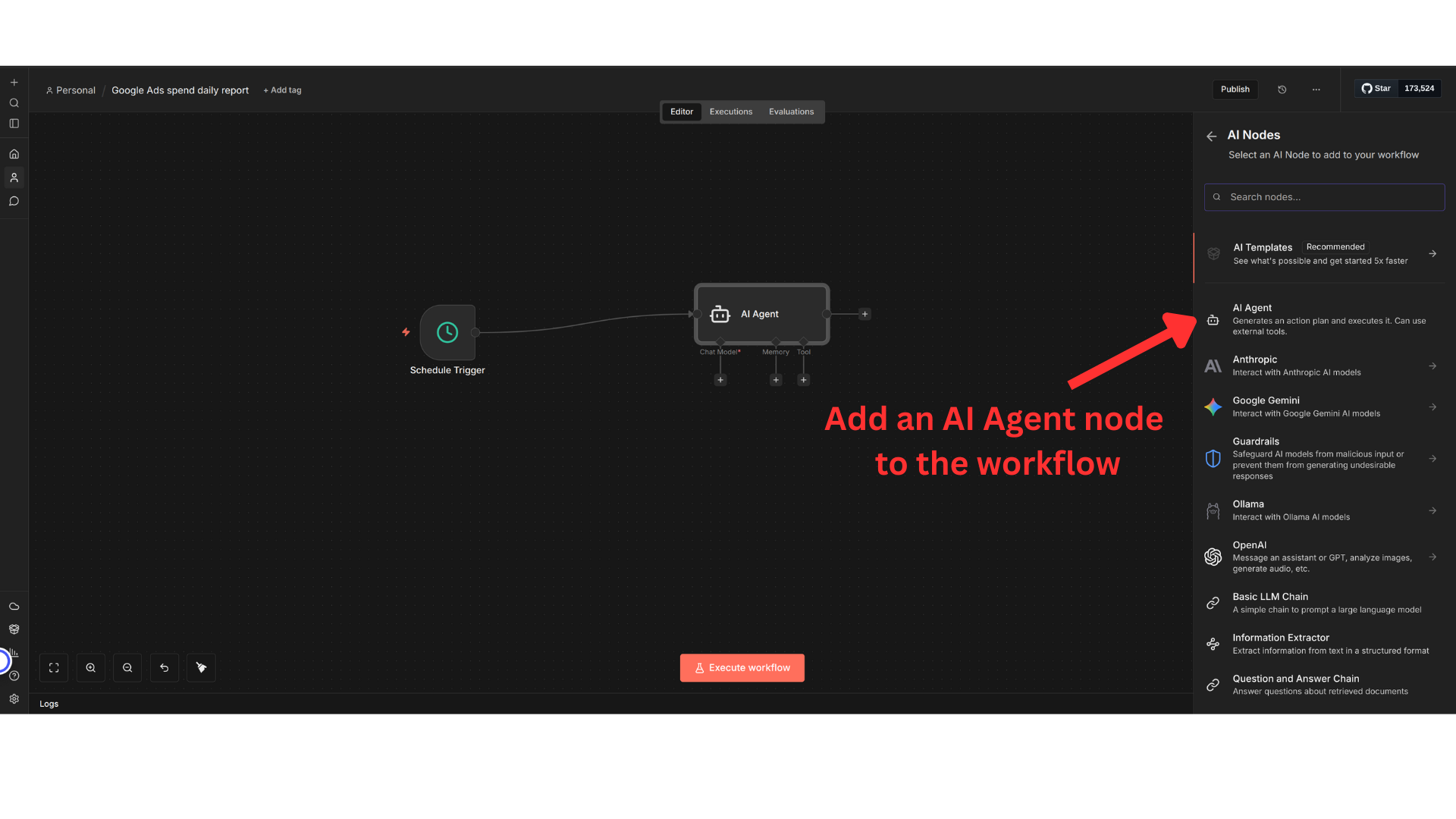
Step 1: Add an AI Agent Node
Start by creating a new workflow in n8n and adding an AI Agent node:
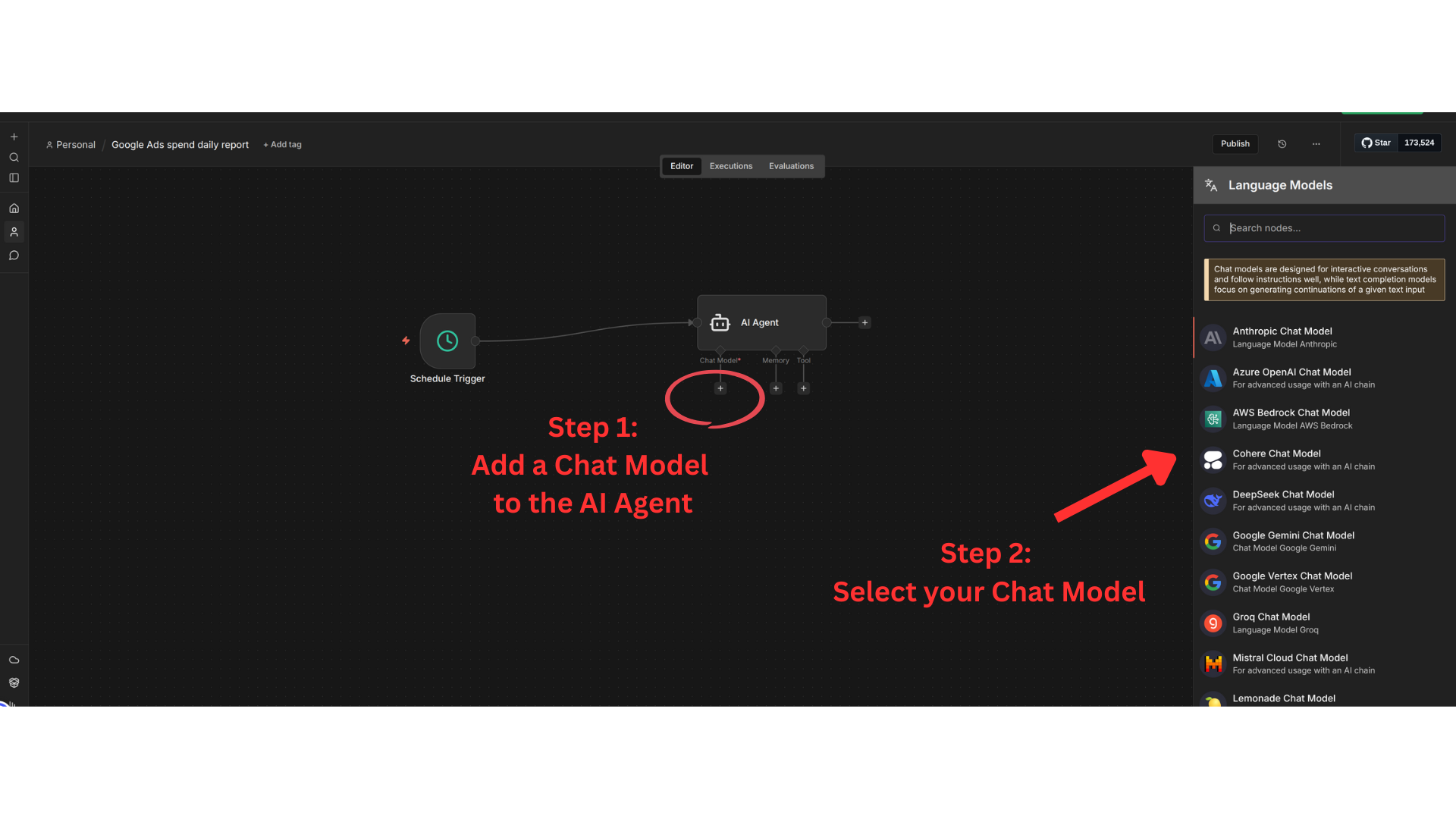
Step 2: Add a Chat Model
The AI Agent needs a chat model to generate responses. Click the + button and add your preferred model (OpenAI, Anthropic, etc.). You'll then need to enter your API key to set up credentials that empower the AI Agent:
Keep your API key secure! Never share it publicly or commit it to version control.
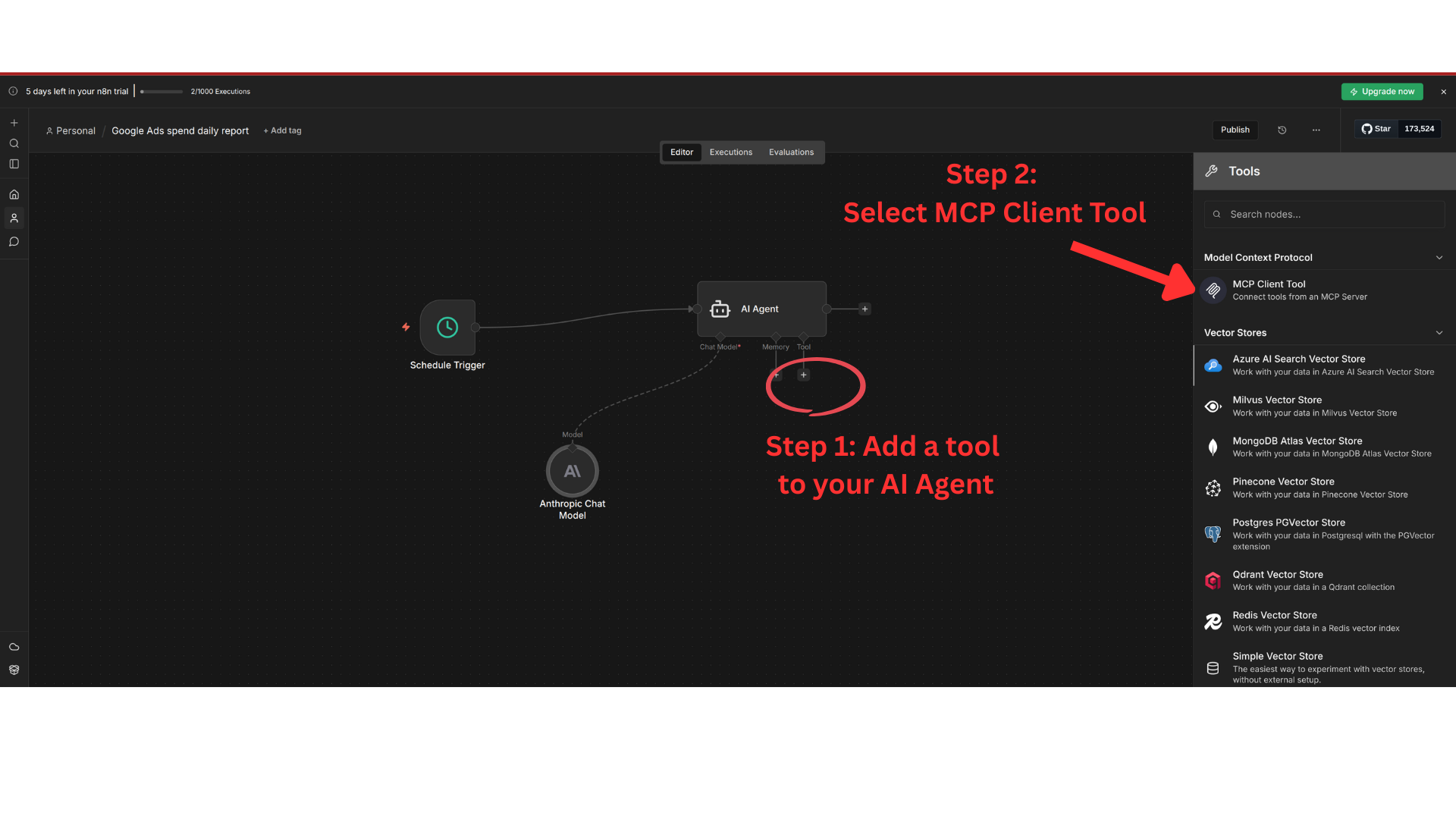
Step 3: Add and Configure Adzviser MCP Tool
Now add Adzviser as an MCP tool so the AI Agent can access your marketing data:
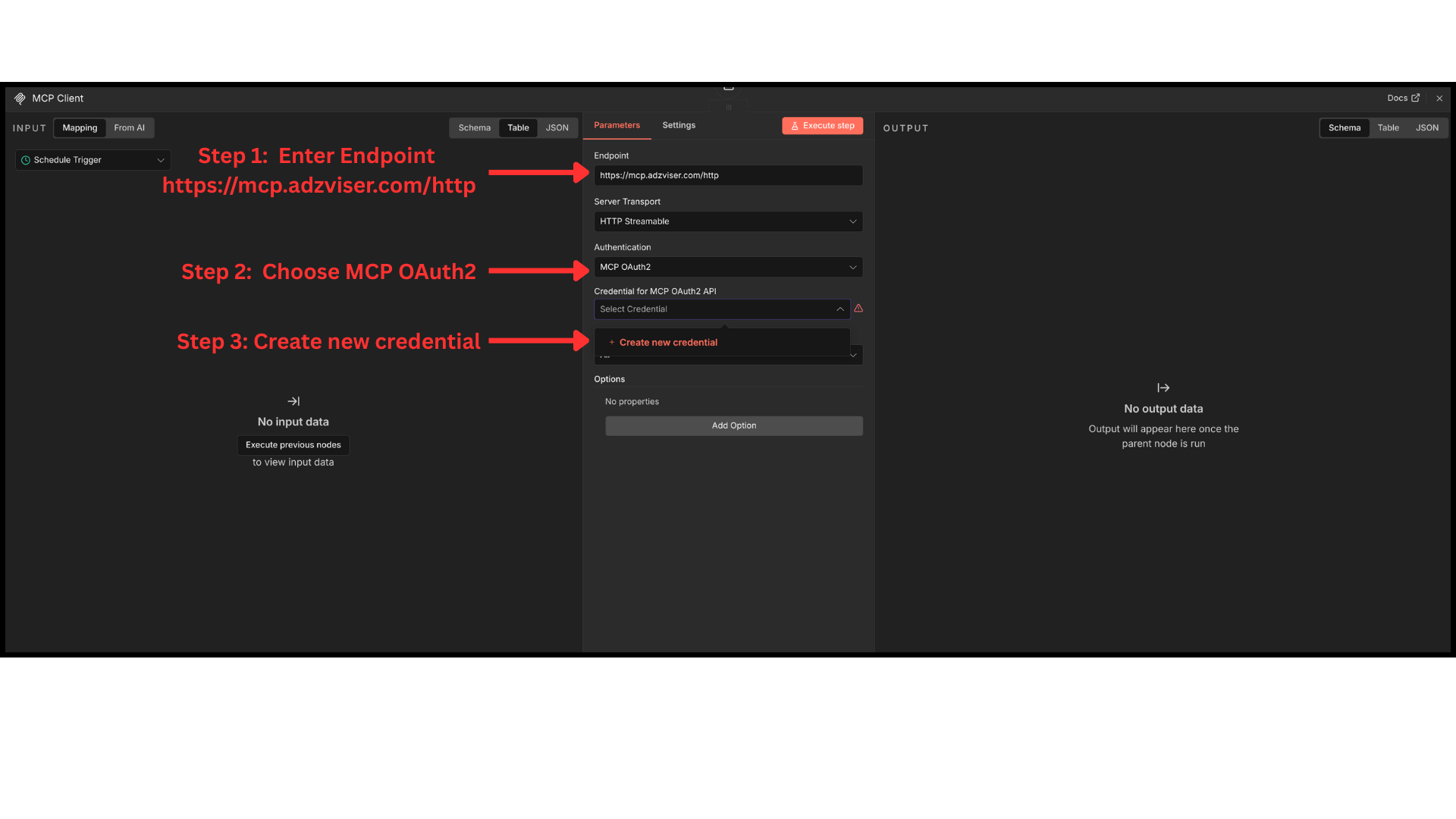
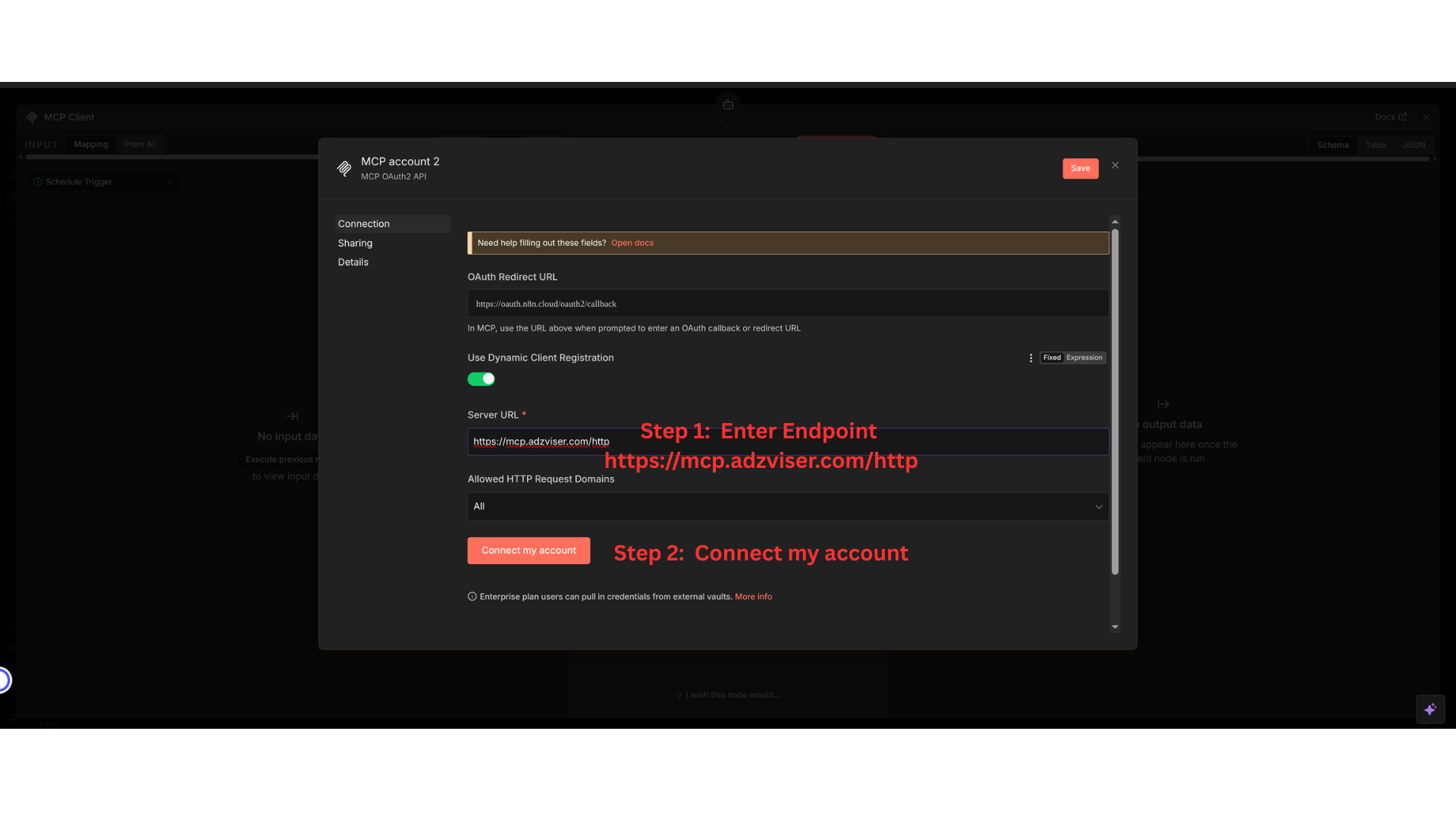
- Click the + button under Tools and select MCP
- Enter
https://mcp.adzviser.com/httpin Endpoint - Choose MCP OAuth2 for Authentication
- Click Create new credentials
Once the credentials setup window opens, enter https://mcp.adzviser.com/http for Server URL, then click Connect my account to complete the OAuth flow.
Step 4: Complete Authentication
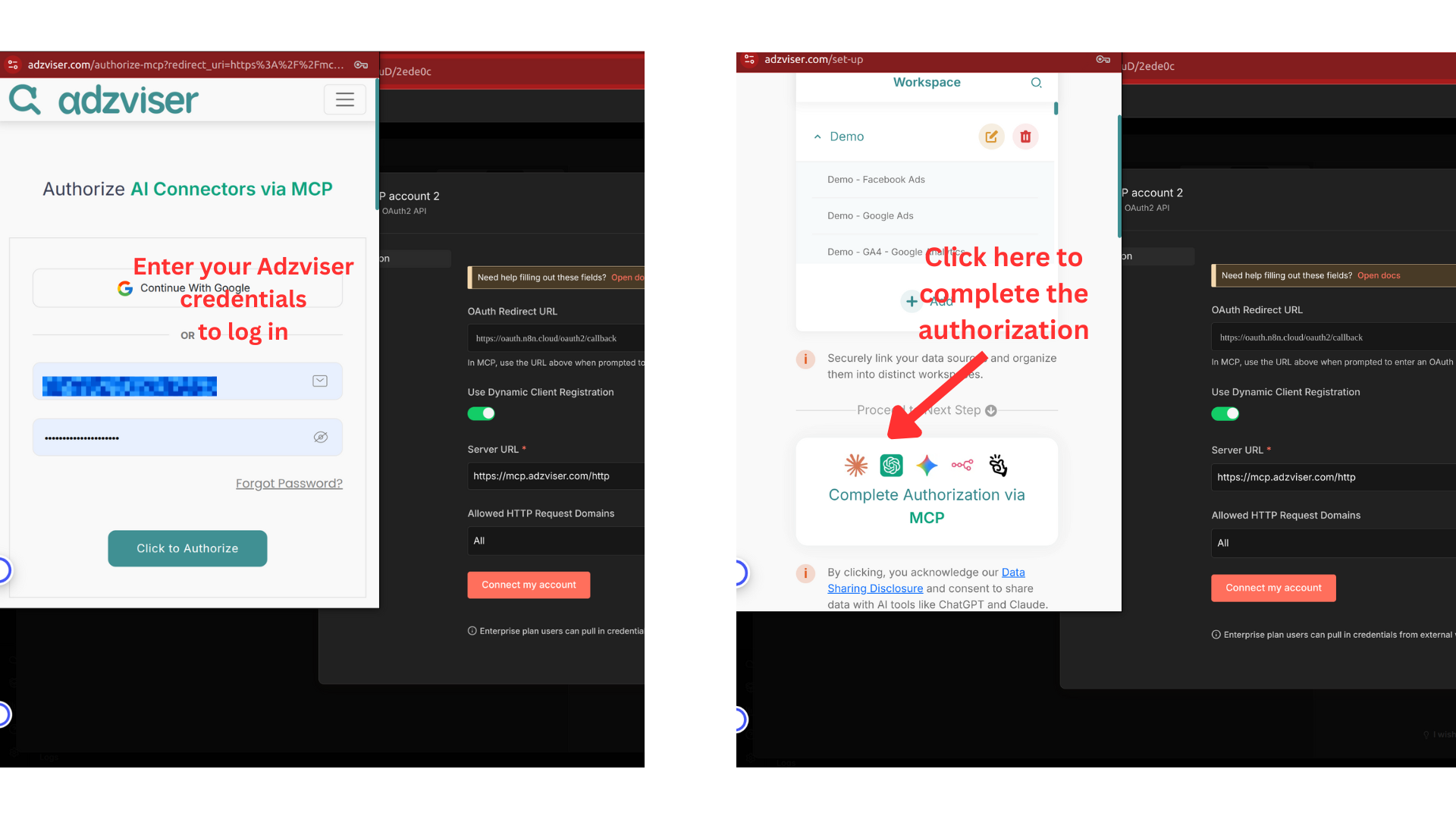
Authorize n8n to access your Adzviser account:
Step 5: Enter Your Prompt
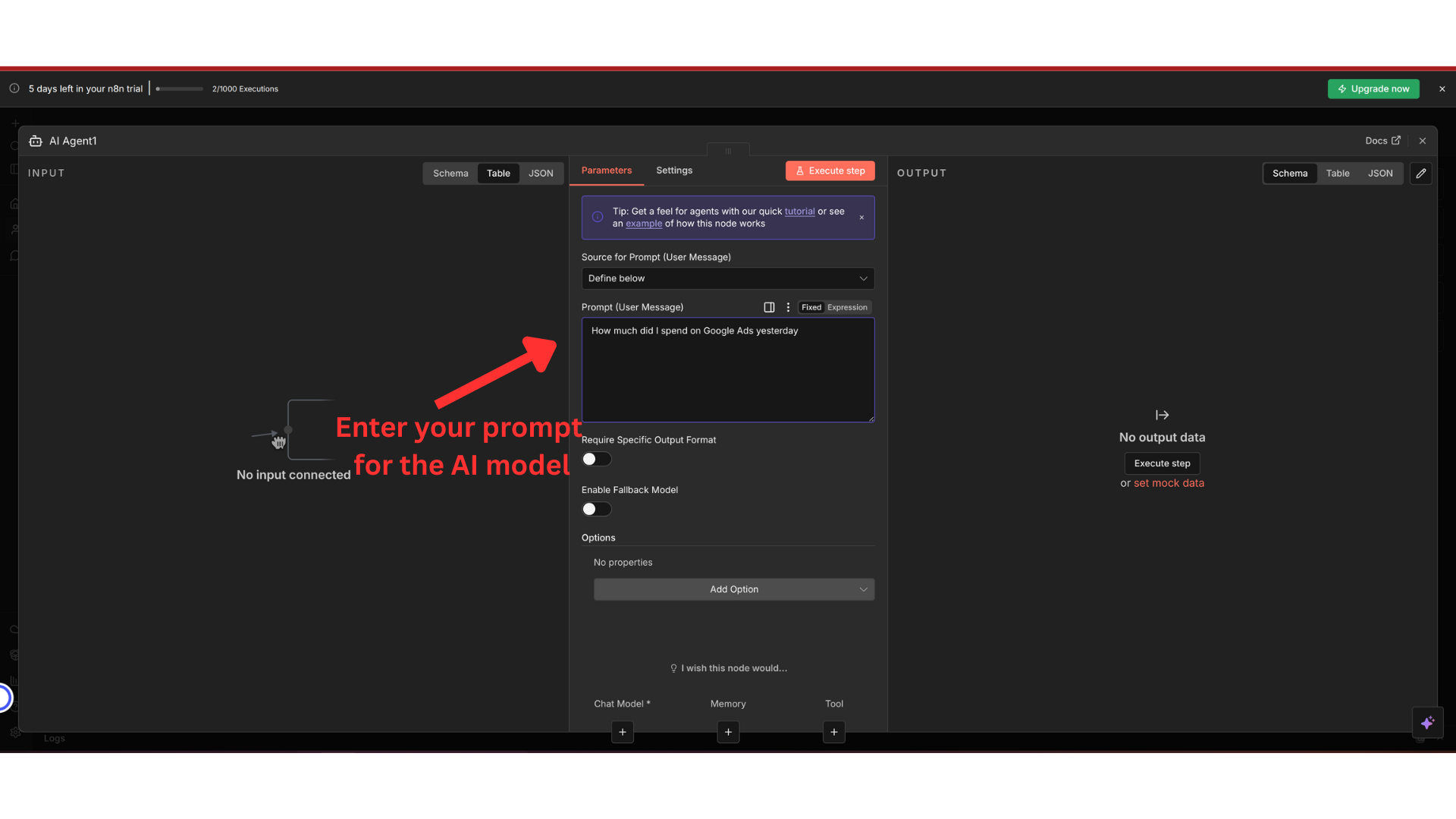
In the AI Agent, choose Define below for the prompt source and enter your instructions in Prompt (User Message). Include the workspace name and reporting period you want the agent to use.
This gives scheduled runs a saved prompt. The automatic prompt option expects a chatInput field from a previous node; a Schedule Trigger does not supply a chat message. See n8n's prompt settings.
Example Prompts
Analyze my Google Ads performance for yesterday and create a summary report.Compare this week's ad spend and conversions across Google Ads, Facebook Ads, and LinkedIn Ads.Show me the top 5 best performing campaigns by ROAS from Facebook Ads this month.Generate a weekly Instagram engagement report with impressions, reach, and follower growth.List all Google Analytics 4 events from the past 7 days and highlight any traffic anomalies.Step 6: Configure Email Delivery (Optional)
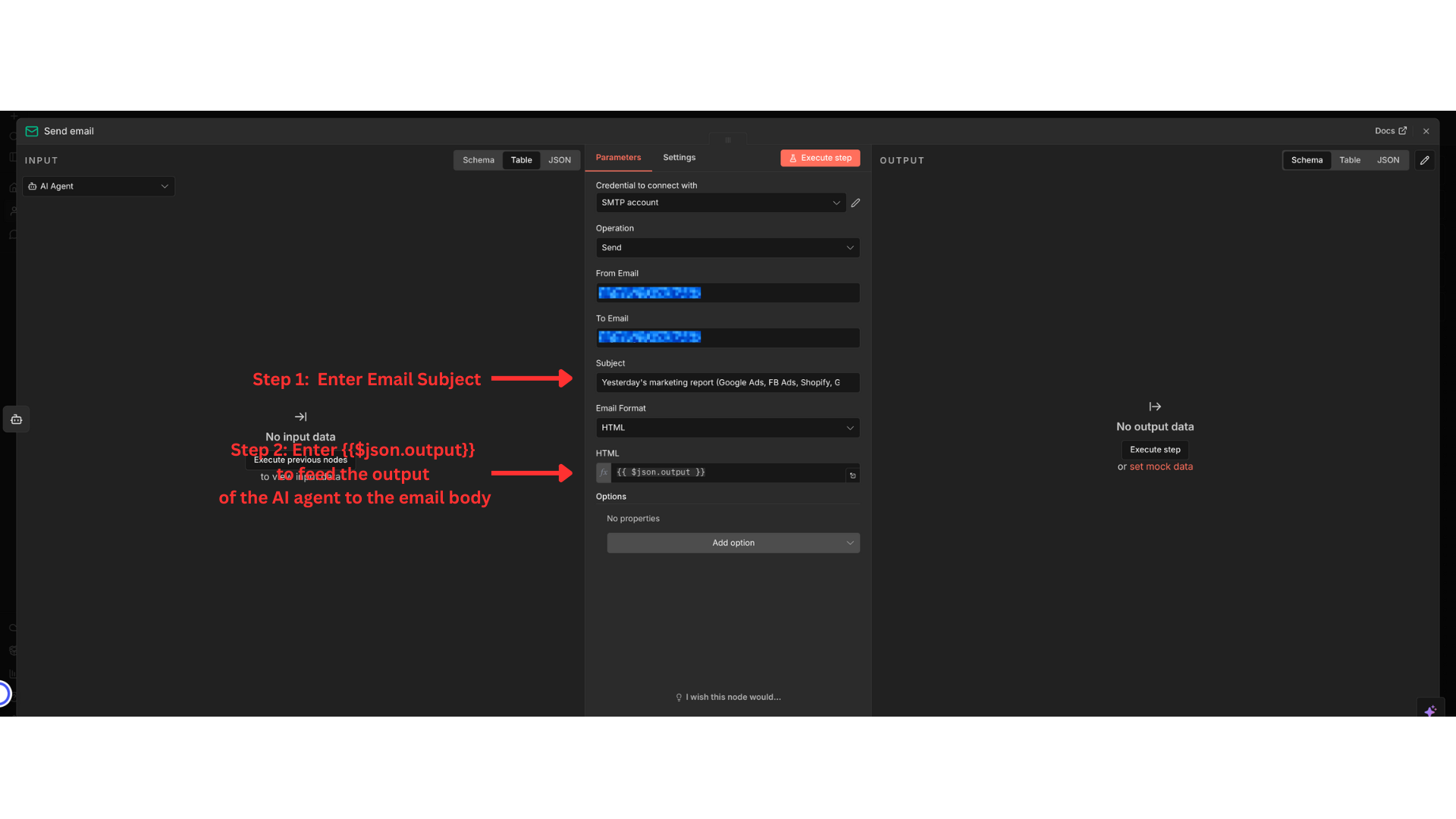
To automatically send reports via email, add an Email node:
- Set up email credentials for your "from" email to enable emailing
- Enter your email subject
- Enter
{{$json.output}}in the email body to include the AI-generated report
Step 7: Test and Deploy
Test the report once
- Connect a Manual Trigger node to the AI Agent's main input. Keep the chat model and Adzviser MCP tool connected to the agent; connect its output to the Email node if you added one.
- Click Execute workflow to run the report once. If email delivery is connected, use your own address for this test.
- Review the retrieved data, reporting dates, generated summary, and email output before enabling recurring runs.
A manual test runs only when you start it. It does not create a schedule.
Add the schedule
Replace the Manual Trigger with a Schedule Trigger connected to the same AI Agent input. The scheduled path is Schedule Trigger → AI Agent → Email (optional).
In the Schedule Trigger's Trigger Rules, configure when the report should run. For example, for a daily report at 9:00 AM:
| Setting | Value |
|---|---|
| Trigger Interval | Days |
| Days Between Triggers | 1 |
| Trigger at Hour | 9 AM |
| Trigger at Minute | 0 |
Open the workflow's three-dot menu → Settings and set Timezone to the timezone for your reporting schedule, for example America/Los_Angeles. Without a workflow timezone, the trigger uses the instance timezone. This setting controls when the workflow starts; specify the reporting period in your prompt as well.
For other frequencies, see n8n's Schedule Trigger guide. See workflow settings for timezone configuration.
Publish and verify recurring runs
- Make sure your workflow changes are saved, then click Publish and confirm publication. Check that publishing completes successfully. See n8n's publishing instructions.
- Keep your n8n instance running. At the next scheduled time, check the workflow's Executions tab and confirm that the report ran automatically and the email arrived if configured.
- If no run appears, check that the Schedule Trigger is connected, its frequency and timezone are correct, and the workflow is published. If a run fails, open that execution to inspect the failing node.
After changing the schedule node or report prompt, publish the updated workflow so recurring runs use those changes. A saved draft alone does not update the published workflow.
Need help? Contact us at https://adzviser.com/contact-us.