Hack with adzviserQuery Sheet
Every time when you have successfully queried data from your connected data sources with Adzviser Google Sheets Add-on, your query will be saved in the sheet named adzviserQuery, which is usually hidden by default.
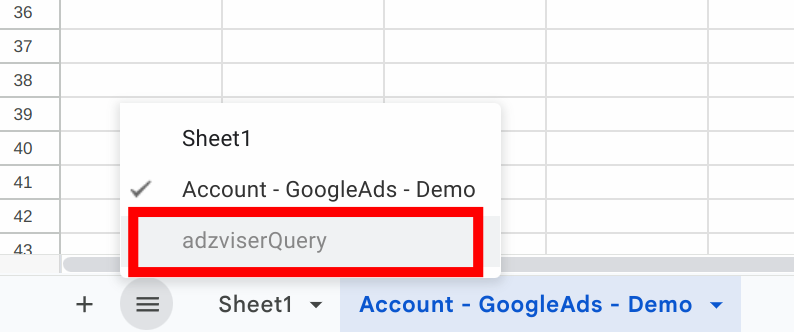
What does this sheet do?
It saves the previously successfully sent queries for different workspaces on Adzviser. These saved queries will be loaded every time when you launch the Adzviser Google Sheets add-on, so that it saves you time from selecting metrics/breakdowns next time.
Saved and Loaded Query Example
Why so important?
It helps marketers with refreshing queries. Every time when a marketer refreshes the data on the spreadsheets, either manually or automatically, Adzviser Google Sheets add-on will read from the adzviserQuery sheet and re-send the saved queries to Adzviser server. Read more about how to refresh queries here.
Can marketers edit / add entries to this sheet?
Yes. Marketers can edit existing rows or add new rows to this sheet with caution.
Metrics / Breakdowns
The acceptable metrics / breakdowns for each data source can be found here, or access them through our Google Sheets add-on, both of which providing a comprehensive list of metrics and breakdowns.
Predefined Date Ranges
Save presets as a JSON list, such as ["last7Days", "prevPeriod"]. Their dates recalculate on each refresh; custom keeps the saved dates. Both start and end dates are included.
Last X days, weeks, or months
Replace X with a number when saving: last7Days, last2Weeks, or last2Months. For a refresh on September 24, 2026, with both time zones set to UTC:
lastXDays— Starts X + 1 days before today and ends yesterday.last7Daysreturns September 16–23: eight days. This is a calculation bug; use a custom range for exactly seven days.lastXWeeks— Starts at the beginning of the week X weeks ago and ends today: X complete weeks plus this week so far.last2Weeksreturns September 7–24 with a Monday start.lastXMonths— Starts on the first day of the month X months ago and ends today: X complete months plus this month so far.last2Monthsreturns July 1–September 24.
Weeks start on Monday unless Week starts on Sunday is enabled.
Other presets
| Preset | Date range |
|---|---|
today / yesterday | That day only. |
lastWeek / lastMonth / lastYear | The previous complete week, calendar month, or calendar year. |
monthToDate / yearToDate | Start of the current month or year through today. |
monthToYesterday | Start of yesterday's month through yesterday. On October 1, this returns September 1–30. |
yearToYesterday | January 1 of the current year through yesterday. Invalid on January 1 because the end precedes the start; use lastYear or custom instead. |
prevPeriod | Shifts the first selected range backward by its inclusive duration. Daylight-saving changes can alter the comparison's length. |
sameDatesOneYearAgo | Moves the first selected range back one year. February 29 becomes March 1 in a non-leap year. |
custom | The saved start and end dates, unchanged on refresh. |
Time zones: These descriptions assume matching spreadsheet and script time zones. Different zones can shift dates or even invert a lastXDays range near a month boundary. Check the calculated dates; use custom when you need fixed boundaries.
Destination Tab Suffix
Each data source writes its results into a default worksheet (tab), named by convention:
DataSource - Workspace name— for example,FacebookAds - Demo- For Microsoft Bing Ads and Google Ads, the data level is included as well:
DataLevel - DataSource - Workspace name— for example,Account - GoogleAds - DemoorCampaign - GoogleAds - Demo
Leave this column empty and your query writes to that default tab. That is what most queries do.
The suffix matters when you keep two queries on the same workspace pulling the same data source at the same level. Both would land on the same tab and overwrite each other's results. To prevent that, Adzviser gives one of them a suffix, which is appended to the tab name in parentheses:
| Destination Tab Suffix | Tab the data lands in |
|---|---|
| (empty) | Account - GoogleAds - Demo |
2 | Account - GoogleAds - Demo (2) |
CPM | Account - GoogleAds - Demo (CPM) |
Adzviser fills this in for you (2, 3, …) as soon as it notices two queries would collide. You can replace it with anything more meaningful — type CPM and the tab becomes Account - GoogleAds - Demo (CPM).
The suffix applies to every tab that query writes. A query pulling Google Ads and Facebook Ads writes two tabs, and both get the suffix:
Campaign - GoogleAds - Demo (2)FacebookAds - Demo (2)
Renaming a query does not move its tab. That is deliberate: moving data on a rename would silently break any chart or formula pointing at the old tab. Edit the suffix here when you actually want the data to move.
Filters
A JSON list. Each filter is applied to the rows a data source returns, before they are written to your sheet. Leave it as [] for no filters.
[
  {"field": "Campaign Name", "operator": "CONTAINS", "value": "Brand", "accountType": "Google Ads"},
  {"field": "Cost", "operator": "GREATER THAN", "value": "100", "accountType": "Google Ads", "logic": "AND"}
]field— a column in the returned data (one of your metrics or breakdowns). Matching ignores case, spaces and punctuation, soCampaign Nameandcampaignnameboth work.operator— one ofEQUAL,DOES NOT EQUAL,CONTAINS,DOES NOT CONTAIN,LESS THAN,GREATER THAN,MATCHES REGEX,DOES NOT MATCH REGEX.value— what to compare against.accountType— which data source the filter applies to, for exampleGoogle Ads. A filter only ever affects its own data source, so a query pulling several sources can filter each one differently.logic—ANDorOR, combining this filter with the ones before it. The first filter has nologic(it starts the chain); if you omit it on a later filter,ANDis assumed.
Destination Cell
By default each data source gets its own tab. Set a cell here, in A1 notation, and the query writes everything into that one sheet instead — starting at that cell and stacking each data source and workspace beneath the previous one.
'Report'!B9- If the sheet name contains an apostrophe, double it:
'Bob''s Diner'!B9. - When a Destination Cell is set, the Destination Tab Suffix is ignored — your data goes to the cell you chose, not to the default tabs.
- Unlike the default tabs, this mode overwrites only the cells it actually writes. If a run returns fewer rows than the previous one, older rows underneath may remain.
Leave it empty to use the default tabs.
Query ID
A unique id Adzviser gives each saved query. Do not edit this.
Rows that share a Query ID are one query. When you pull the same data source from several workspaces at once, Adzviser saves one row per workspace — all carrying the same Query ID. Rename, Duplicate and Delete in the add-on act on this id.
If you blank the cell, Adzviser assigns a fresh id the next time it loads the sheet, and that row becomes a separate query.
Query Name
The name shown on the card in the Saved queries panel of the add-on. It is a label only: safe to edit, and changing it never moves your data.
Can you save multiple entries for the same workspace within adzviserQuery?
Yes — and you no longer have to do it by hand.
Turn on Add / Manage multiple queries per workspace in the add-on's Options, and a Saved queries panel appears above your accounts. From there you can add another query for the selected workspace, switch between the ones you already have, and rename, duplicate or delete them.
You can still add rows manually if you prefer. Just remember that two queries on the same workspace pulling the same data source at the same level would otherwise write to the same tab — give one of them a Destination Tab Suffix so they don't overwrite each other. Adzviser does this for you automatically whenever it spots a clash.