Google BigQuery Pipeline Setup Guide: Export Marketing Data to BigQuery
This guide walks you through creating an automated data pipeline that exports your marketing and sales data to Google BigQuery.
Prerequisites
Before you begin, make sure you have:
- An Adzviser account with at least one connected data source (Sign up here)
- A Google Cloud project with BigQuery API enabled (Enable BigQuery API)
- A GCP service account with
BigQuery Data EditorandBigQuery Job Userroles
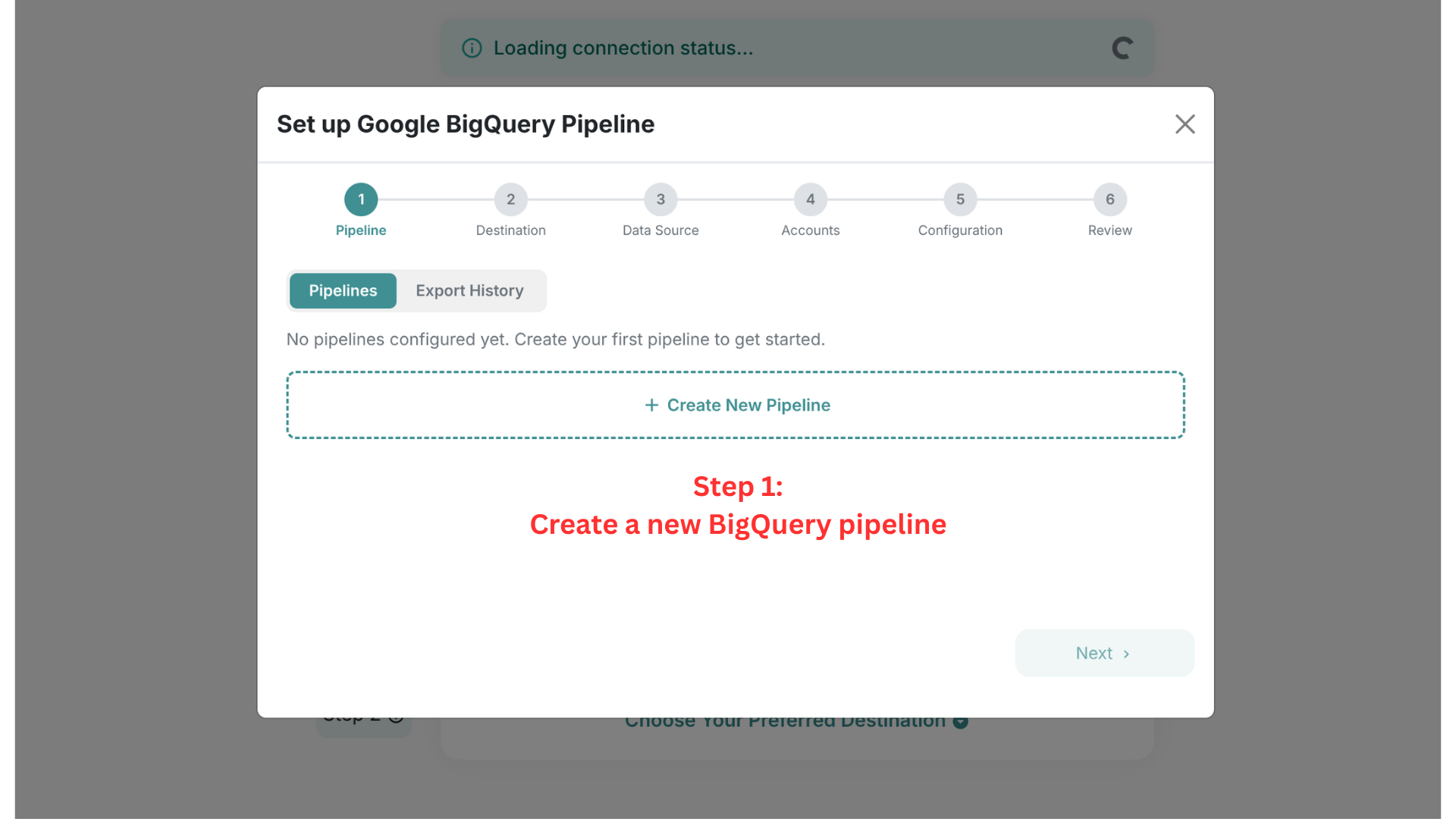
Step 1: Create a New Pipeline
Navigate to the Set Up page on Adzviser and select Google BigQuery as your destination. Click + Create New Pipeline to begin.
Step 2: Set Up a GCP Service Account
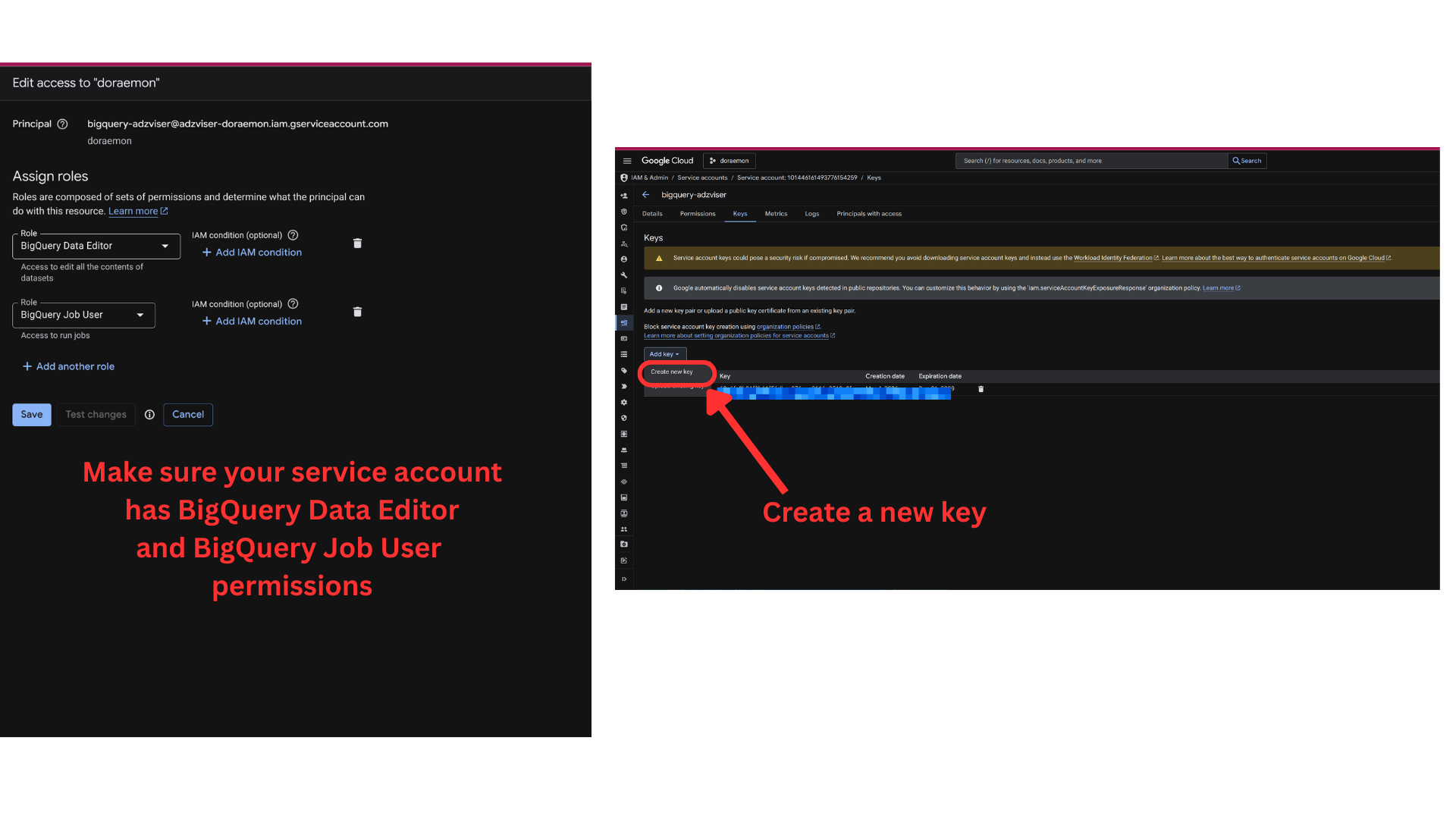
In the Google Cloud Console, create a service account (or use an existing one) and ensure it has the following roles:
BigQuery Data Editor— allows editing all the contents of datasetsBigQuery Job User— allows running jobs (required for data loading)
Then navigate to Keys and click Add key > Create new key to generate a JSON key file.
Store your service account JSON key securely. It grants access to your BigQuery project.
Step 3: Enter Your Service Account JSON Key
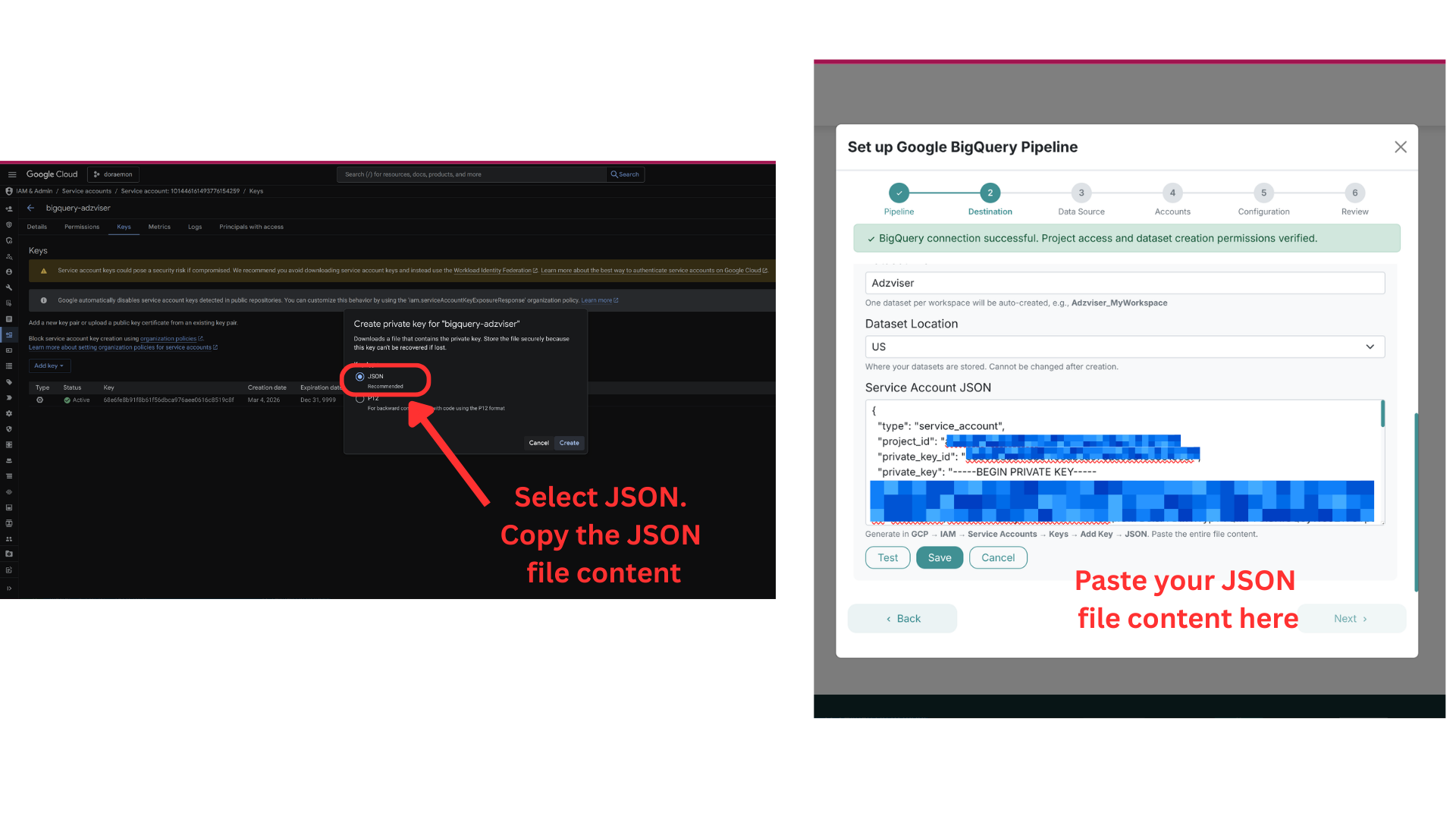
Open the downloaded JSON key file and copy the entire contents. Paste it into the Service Account JSON field in Adzviser.
You can also configure the Dataset Location (e.g., US, EU) — this determines where your BigQuery datasets are physically stored and cannot be changed after creation.
Click Test to verify the connection, then click Save.
Step 4: Select Data Source and Accounts
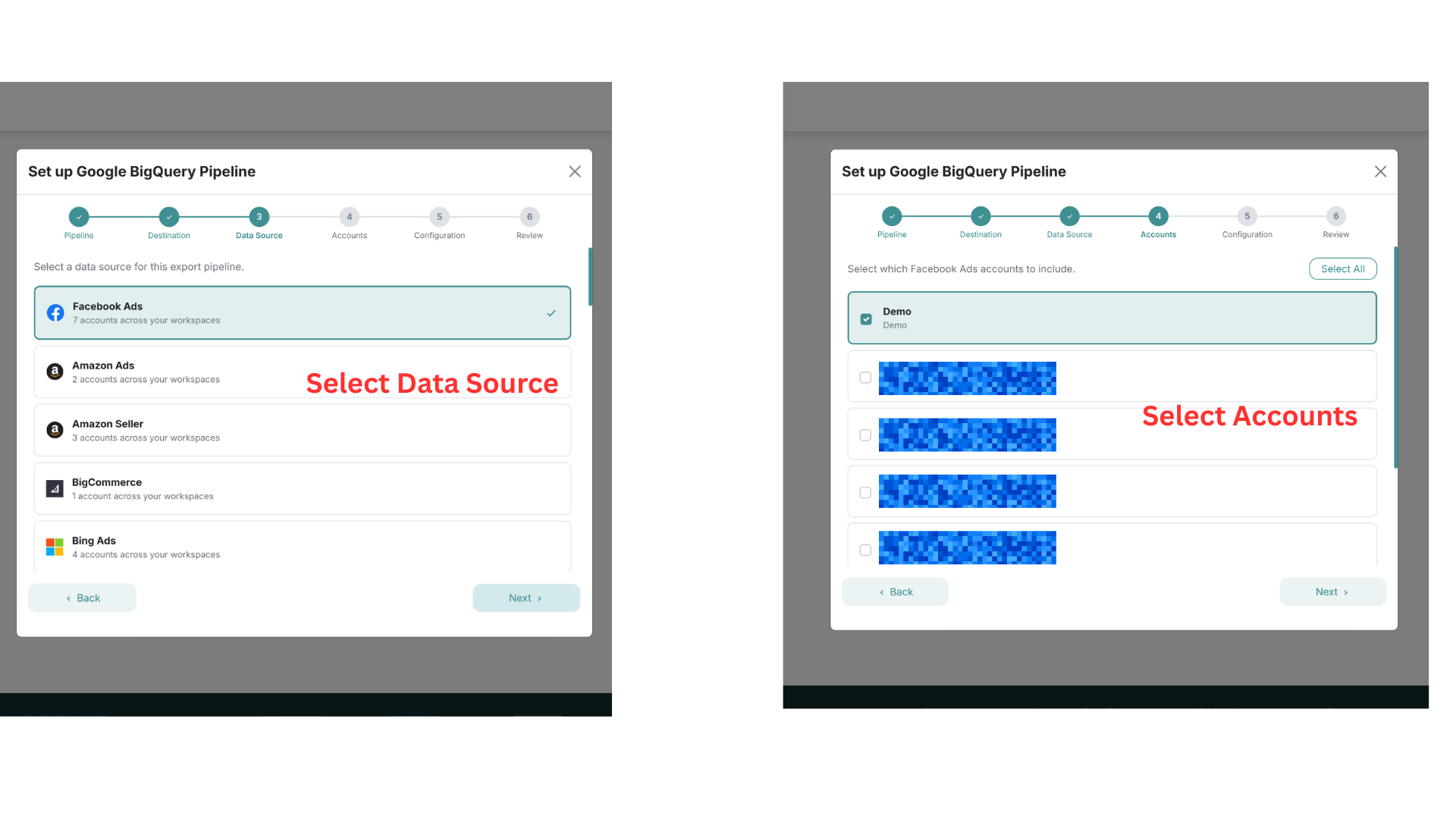
Choose which data source you want to export (e.g., Facebook Ads, Google Ads, Shopify) and then select the specific accounts to include in this pipeline.
Step 5: Configure Metrics and Export Mode
Select the metrics and breakdowns you want to export. Then choose your export mode:
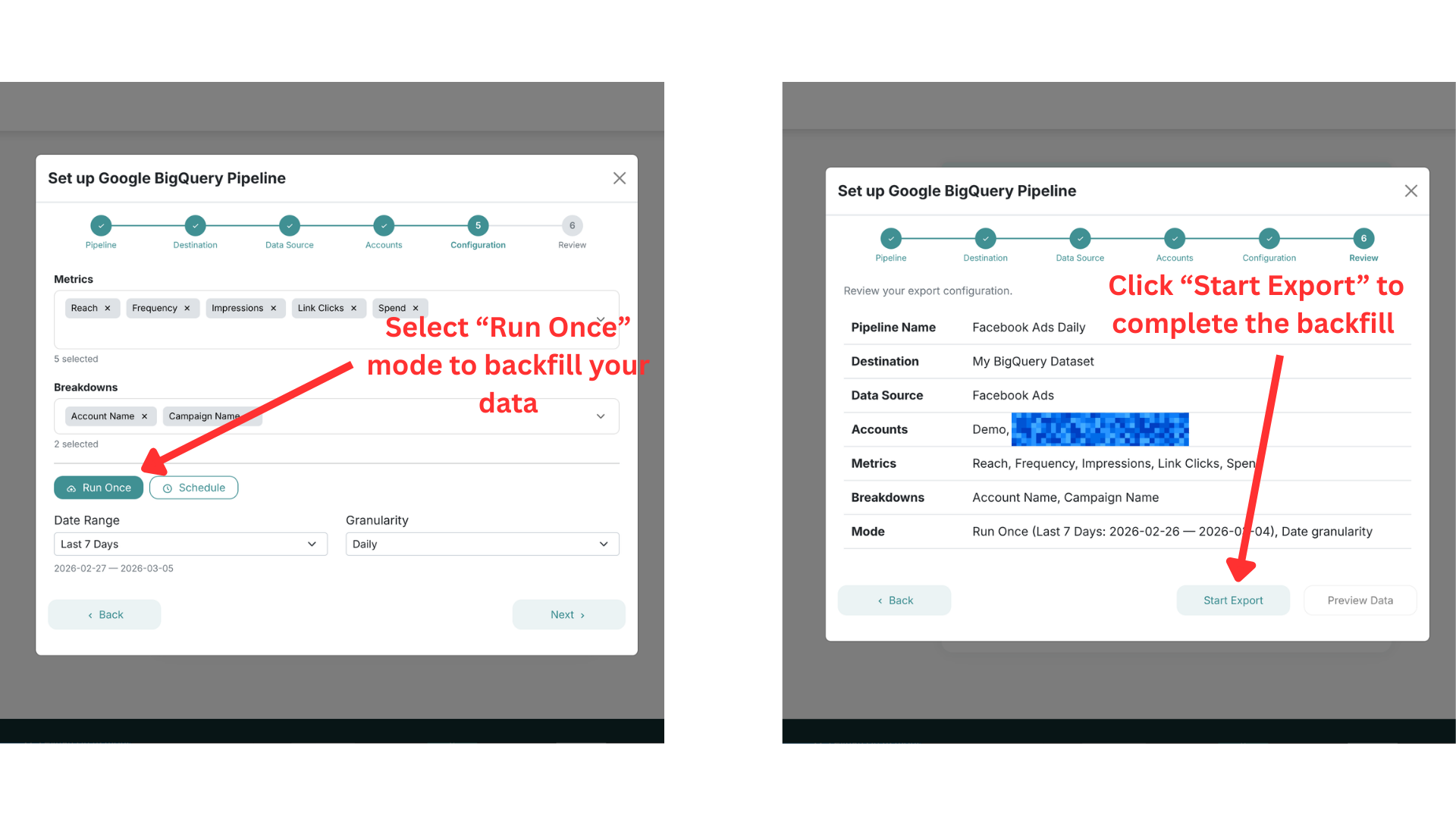
Option A: Run Once (Backfill)
Select Run Once to perform a one-time data export. Choose your date range and granularity, then click Next to review your configuration. Click Start Export to begin the backfill.
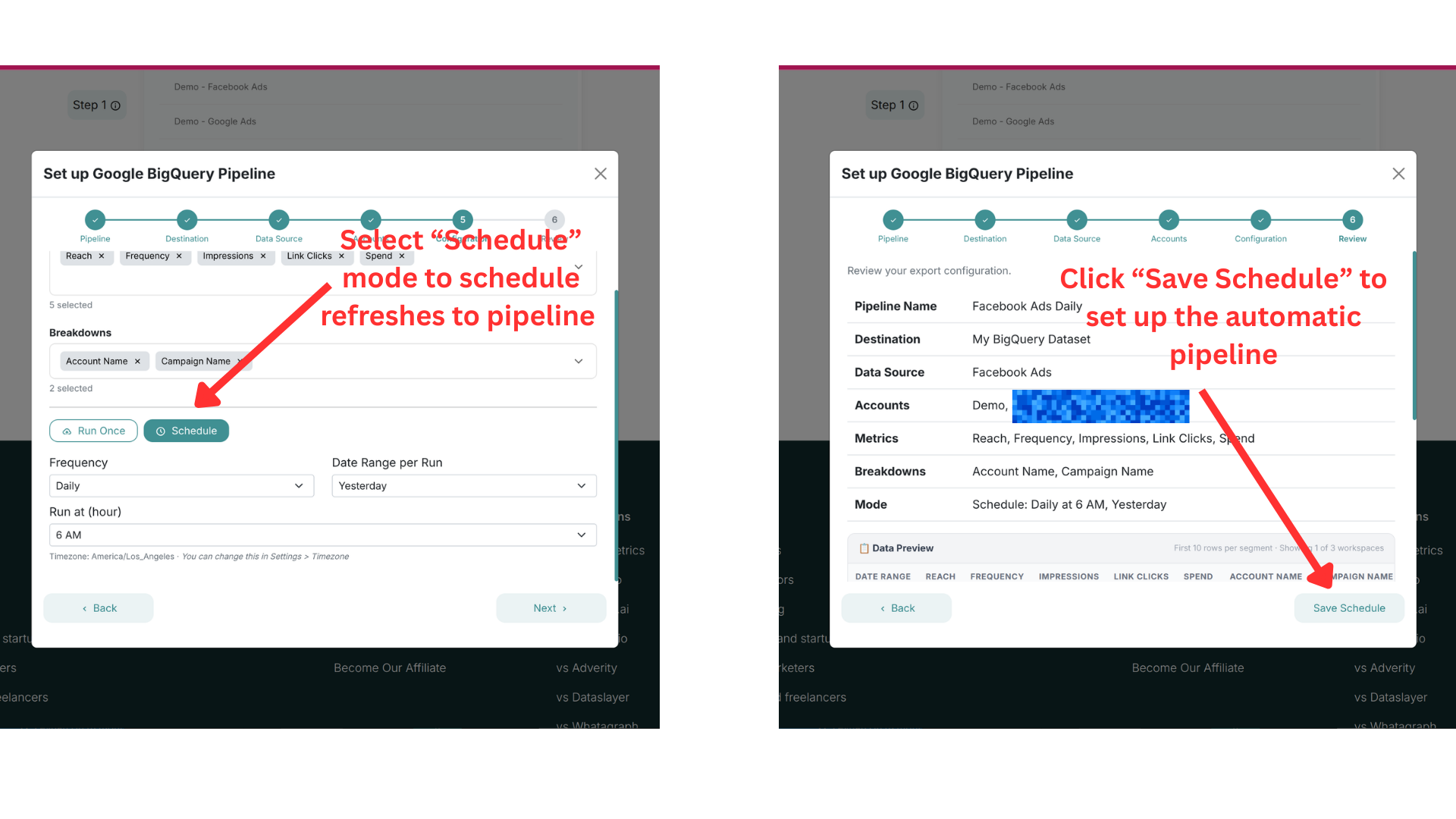
Option B: Scheduled Export
Select Schedule to set up automatic, recurring exports. Configure the frequency (e.g., Daily), date range per run (e.g., Yesterday), and the time of day to run. Click Next to review, then click Save Schedule to activate.
You can create multiple pipelines for different data sources or accounts. Each pipeline runs independently with its own schedule and creates its own table in BigQuery.
Next Steps
Once your pipeline is running:
- Monitor exports — check the Export History tab to see past runs and their status
- Query your data — open BigQuery Console and run SQL queries on your exported tables
- Add more pipelines — create additional pipelines for other data sources or accounts
- Build dashboards — connect BigQuery to your favorite BI tools
Need help? Contact us at https://adzviser.com/contact-us.