Google BigQuery Pipeline Setup Guide: Export Marketing Data to BigQuery
This guide walks you through creating an automated data pipeline that exports your marketing and sales data to Google BigQuery.
Prerequisites
Before you begin, make sure you have:
- An Adzviser account with at least one connected data source (Sign up here)
- A Google Cloud project with BigQuery API enabled (Enable BigQuery API)
- A GCP service account with
BigQuery Data EditorandBigQuery Job Userroles
Your account also needs access to this warehouse destination and available monthly row capacity. Check Usage metrics from the account menu on Set Up before a large backfill.
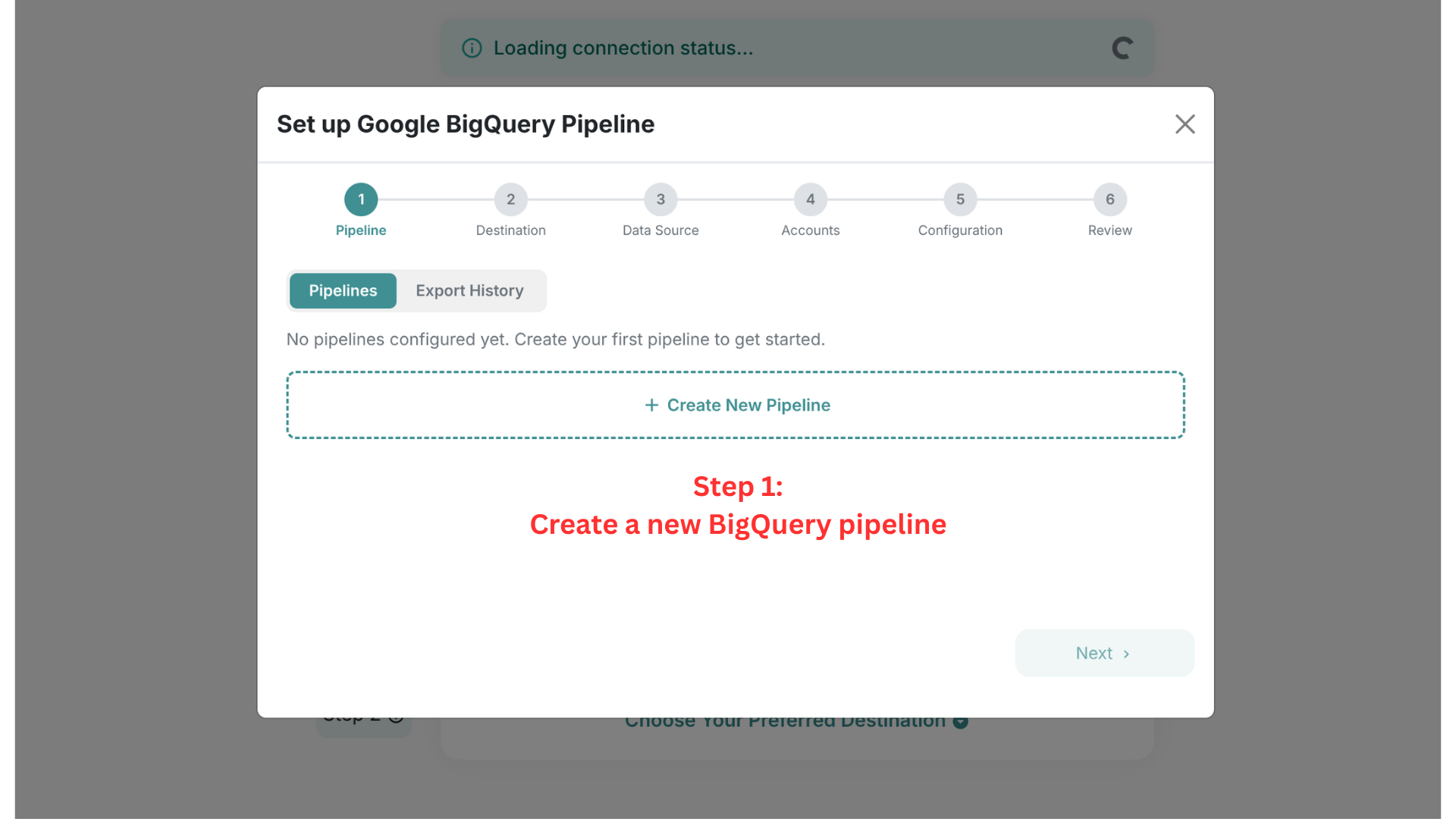
Step 1: Create a New Pipeline
Navigate to the Set Up page on Adzviser and select Google BigQuery as your destination. Click + Create New Pipeline to begin.
Step 2: Set Up a GCP Service Account
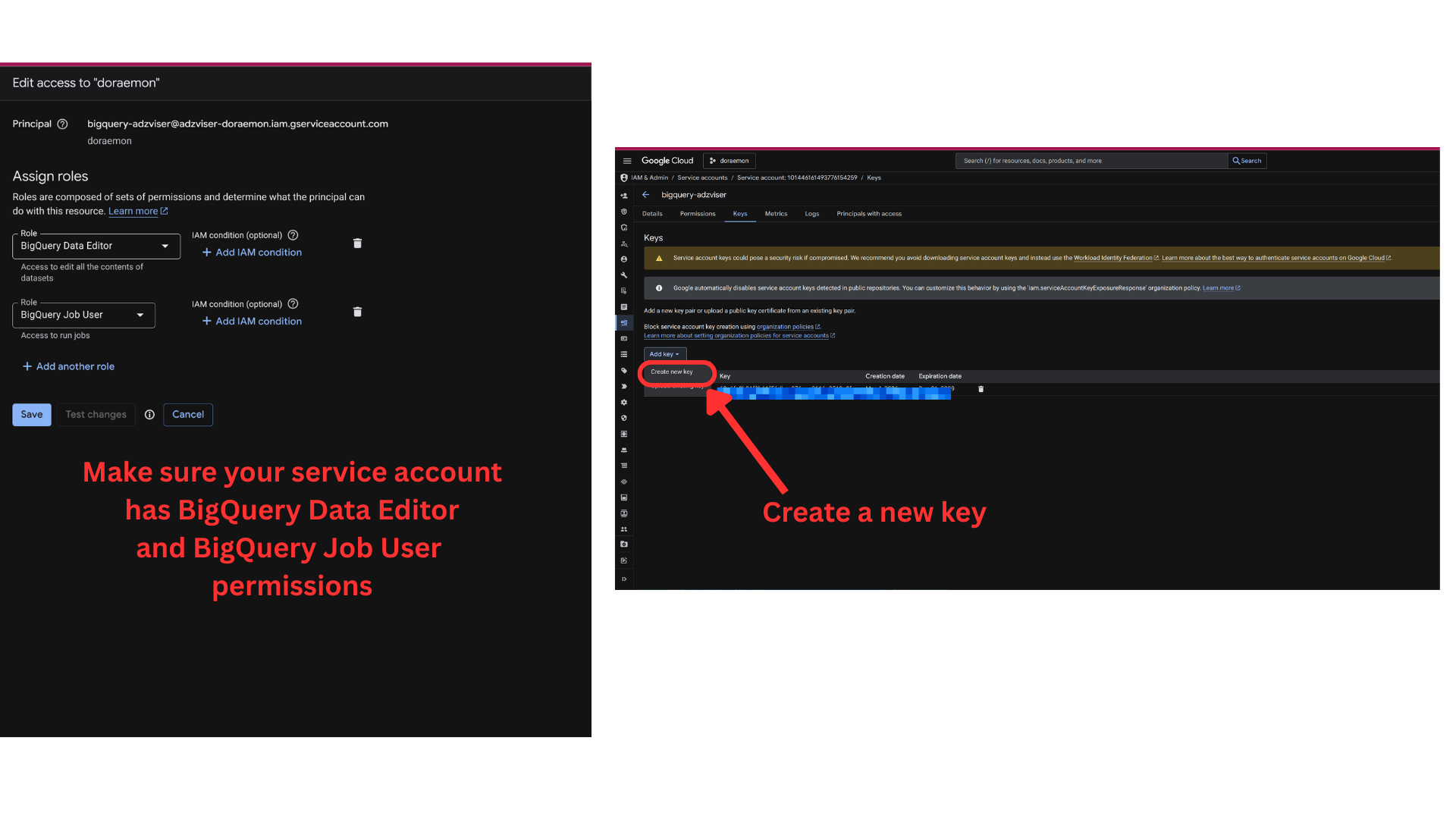
In the Google Cloud Console, create a service account (or use an existing one) and ensure it has the following roles:
BigQuery Data Editor— allows editing all the contents of datasetsBigQuery Job User— allows running jobs (required for data loading)
Then navigate to Keys and click Add key > Create new key to generate a JSON key file.
Store your service account JSON key securely. It grants access to your BigQuery project.
Step 3: Enter Your Service Account JSON Key
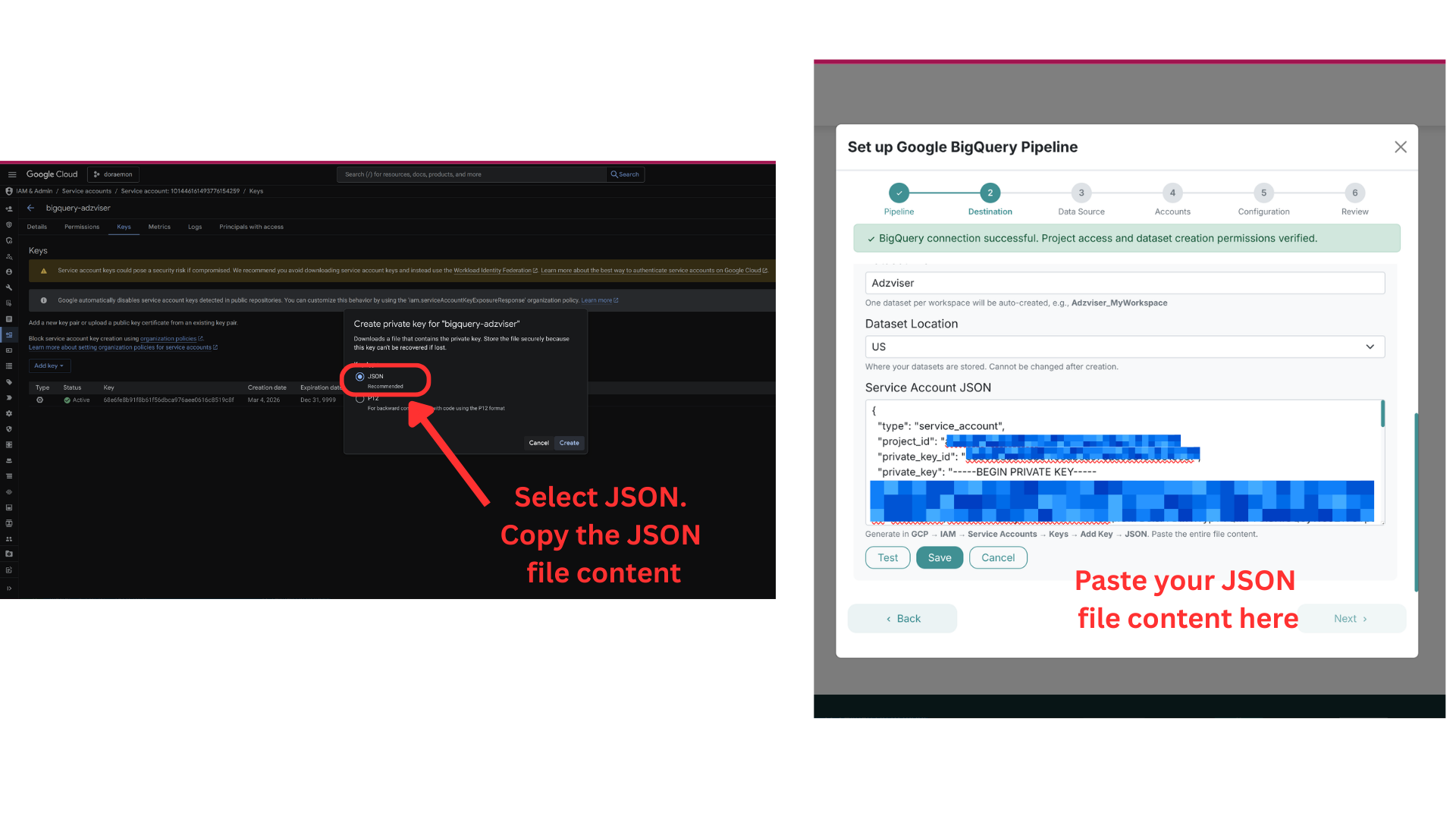
Open the downloaded JSON key file and copy the entire contents. Paste it into the Service Account JSON field in Adzviser.
The Dataset Prefix is combined with your workspace and data source to form each dataset name. See dataset and table names for an example.
You can also configure the Dataset Location (e.g., US, EU) — this determines where your BigQuery datasets are physically stored and cannot be changed after creation.
Click Test to verify the connection, then click Save.
Step 4: Select Data Source and Accounts
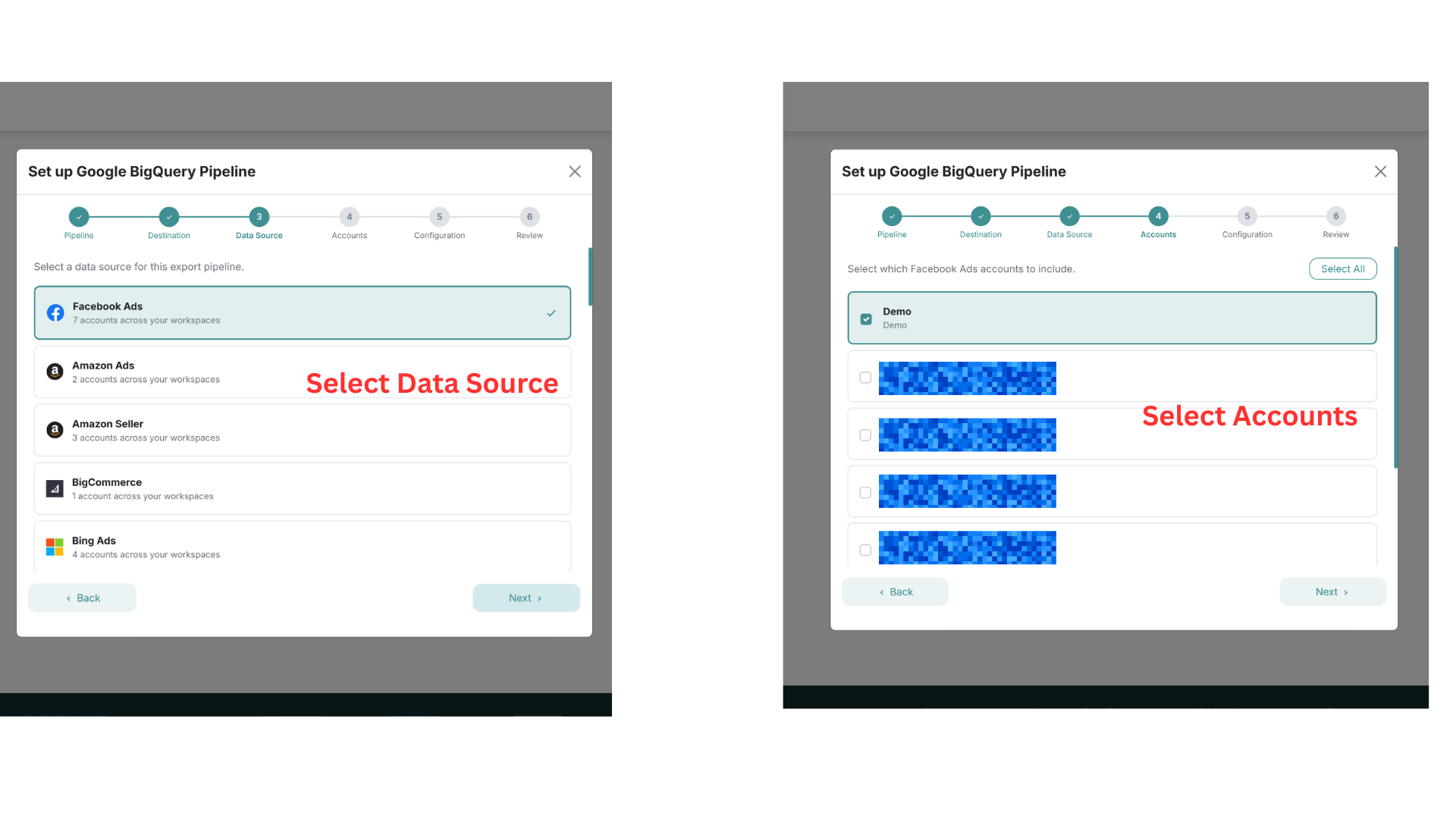
Choose which data source you want to export (e.g., Facebook Ads, Google Ads, Shopify) and then select the specific accounts to include in this pipeline.
Step 5: Configure Metrics and Export Mode
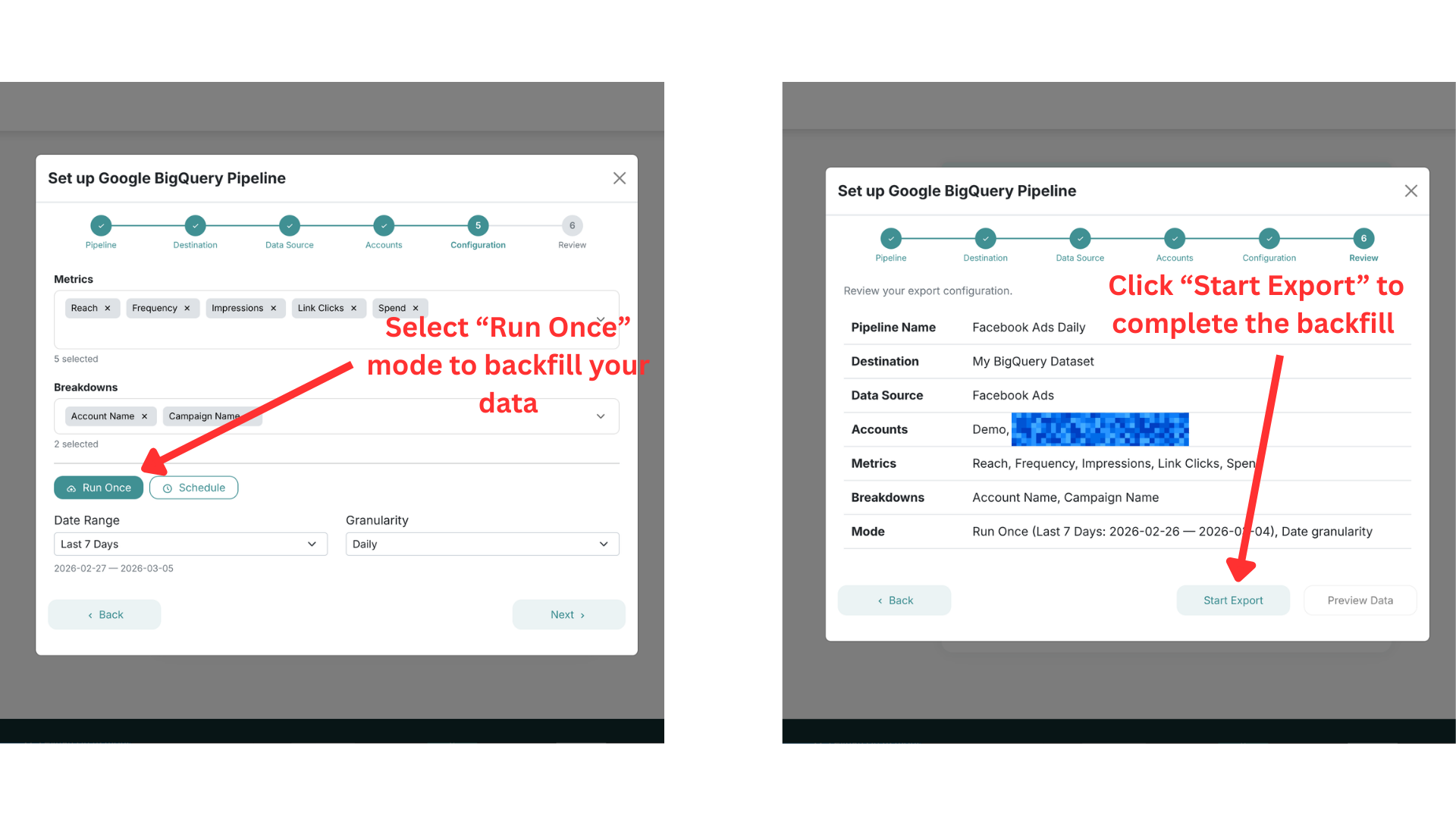
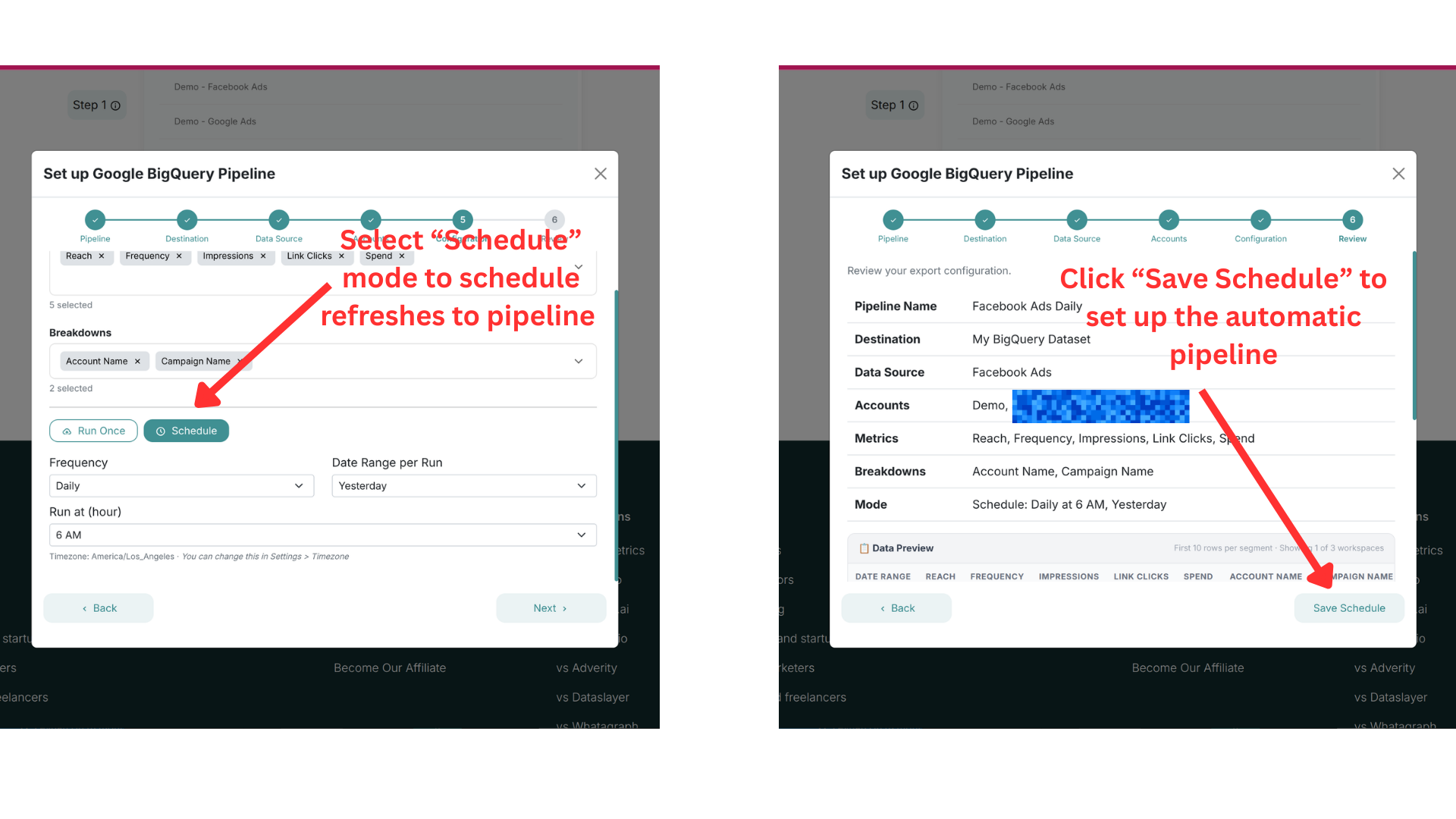
Select the metrics and breakdowns you want to export. Then choose your export mode:
Option A: Run Once (Backfill)
Select Run Once to perform a one-time data export. Choose your date range and granularity, then click Next to review your configuration. Click Start Export to begin the backfill.
Option B: Scheduled Export
Select Schedule to set up automatic, recurring exports. Configure the frequency (e.g., Daily), date range per run (e.g., Yesterday), and the time of day to run. Click Next to review, then click Save Schedule to activate.
Each pipeline runs on its own schedule. Pipelines with the same destination, workspace, source, and report segment can share a table and replace each other's rows for overlapping dates. See pipelines that share a table.
Monthly row capacity
Both Run Once backfills and scheduled exports count toward your account's Monthly active rows (MAR) allowance, shared by Amazon S3 and BigQuery. Successfully exported data rows count; headers and unsuccessful writes do not. Exporting the same rows again counts again, even when they replace existing data.
To check MAR, open Set Up, open the account menu, and select Usage metrics. The MAR panel shows exported rows for the current UTC calendar month. It does not show the plan limit or capacity reserved by exports in progress. Review Subscription info or contact Adzviser to confirm your account's allowance.
An export can be rejected for capacity even when its connection settings are correct. If capacity is reserved by running exports, wait for them to finish before retrying. If the export needs more rows than remain, reduce its date range or detail, wait for the next monthly period, or contact Adzviser about more capacity. Splitting a backfill does not increase the monthly allowance.
Check Export History before retrying a failed run: partial writes may already have counted toward MAR. See Usage metrics and capacity recovery for the exact error messages and next steps.
Next Steps
Once your pipeline is running:
- Monitor exports — check the Export History tab for run results. It does not keep a separate table snapshot for each run; see keeping earlier data.
- Query your data — open BigQuery Console and run SQL queries on your exported tables
- Add more pipelines — create additional pipelines for other data sources or accounts
- Build dashboards — connect BigQuery to your favorite BI tools
Need help? Contact us at https://adzviser.com/contact-us.