Amazon S3 Pipeline Setup Guide: Export Marketing Data to Your S3 Bucket
This guide walks you through creating an automated data pipeline that exports your marketing and sales data to Amazon S3.
The video uses AmazonS3FullAccess. You can follow that approach or choose the recommended bucket-scoped policy in Step 2 to limit access to your export bucket. Adzviser supports either option, and the remaining setup steps in the video are the same.
Prerequisites
Before you begin, make sure you have:
- An Adzviser account with at least one connected data source (Sign up here)
- An AWS account with an S3 bucket already created (Create an S3 bucket)
- AWS IAM access keys with either
AmazonS3FullAccessor the bucket-scoped policy below
Your account also needs access to this warehouse destination and available monthly row capacity. Check Usage metrics from the account menu on Set Up before a large backfill.
Step 1: Create a New Pipeline
Navigate to the Set Up page on Adzviser and select Amazon S3 as your destination. Click + Create New Pipeline to begin.
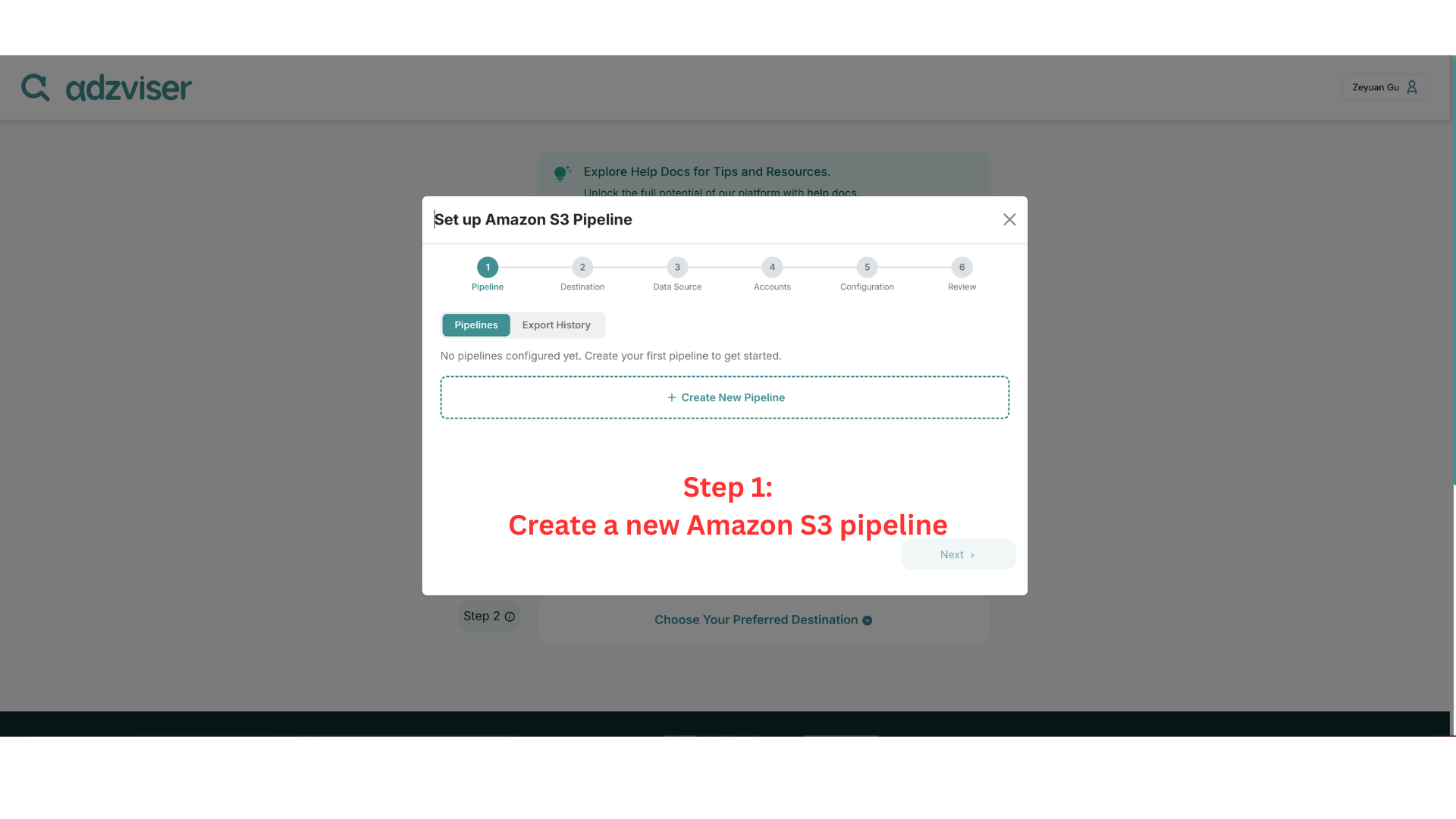
Step 2: Create an AWS Access Key
Use an IAM user dedicated to Adzviser so you can manage its permissions separately. In the AWS Console, open IAM > Users, create or select that user, and choose one of these permission options before creating its access key.
Option 1: AmazonS3FullAccess (shown in the video)
AmazonS3FullAccess is an AWS-managed policy that grants full S3 permissions across S3 resources, including reading, uploading, and deleting files and managing buckets. It works with Adzviser, but grants more access than an export pipeline needs. View the policy on AWS.
On your IAM user's Permissions tab, choose Add permissions > Attach policies directly, search for AmazonS3FullAccess, select it, and finish adding the permissions. Then continue to Create the access key below, as shown in the video.
Option 2: Limit access to your export bucket (recommended)
For a bucket in the same AWS account as your IAM user, this custom IAM policy grants two permissions:
- List files (
s3:ListBucket) so Adzviser can test the connection. - Write export files (
s3:PutObject), including replacing a file at the same path when an export is repeated.
The policy does not grant permission to download or delete files, manage buckets, or access other buckets.
- Open IAM > Policies > Create policy, then select the JSON editor.
- Paste the policy below, replacing both occurrences of
YOUR_BUCKET_NAMEwith your existing bucket's name. Use just the name, withouts3://.
{
  "Version": "2012-10-17",
  "Statement": [
    {
      "Sid": "CheckDestinationBucket",
      "Effect": "Allow",
      "Action": "s3:ListBucket",
      "Resource": "arn:aws:s3:::YOUR_BUCKET_NAME"
    },
    {
      "Sid": "WriteExportFiles",
      "Effect": "Allow",
      "Action": "s3:PutObject",
      "Resource": "arn:aws:s3:::YOUR_BUCKET_NAME/*"
    }
  ]
}- Choose Next, name the policy
AdzviserS3Export, review it, and choose Create policy. - Return to IAM > Users > your Adzviser user > Permissions. Choose Add permissions > Attach policies directly, select
AdzviserS3Export, and finish adding the permissions.
Optional: limit writes to a folder. Change the second Resource to arn:aws:s3:::YOUR_BUCKET_NAME/adzviser/* and set Path Prefix in Adzviser to adzviser. Keep the s3:ListBucket statement unchanged: the connection test lists the bucket without a folder filter, so listing remains allowed across that bucket.
Switching from AmazonS3FullAccess? Remove that policy from your dedicated Adzviser user when switching to this option. Adding the custom policy alongside it does not reduce the existing access. Other policies attached directly or through groups can also grant broader access.
Create the access key (either option)
- Open IAM > Users > your Adzviser user > Security credentials.
- Scroll to Access keys and choose Create access key.
- Follow the prompts to create the key for use by Adzviser outside AWS.
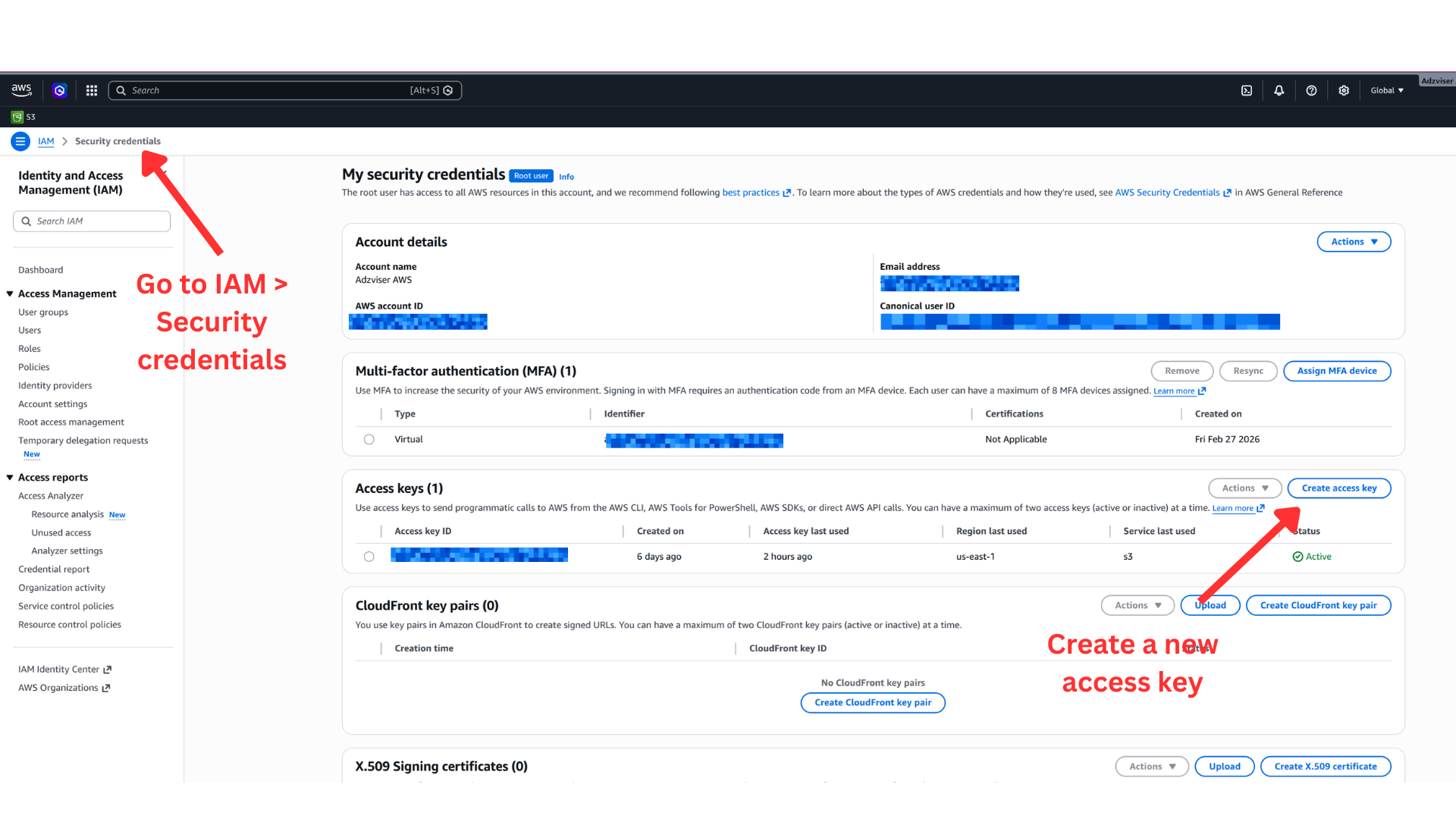
Store your secret access key securely — AWS only shows it once. If you lose it, you'll need to create a new key.
Step 3: Enter Your AWS Credentials
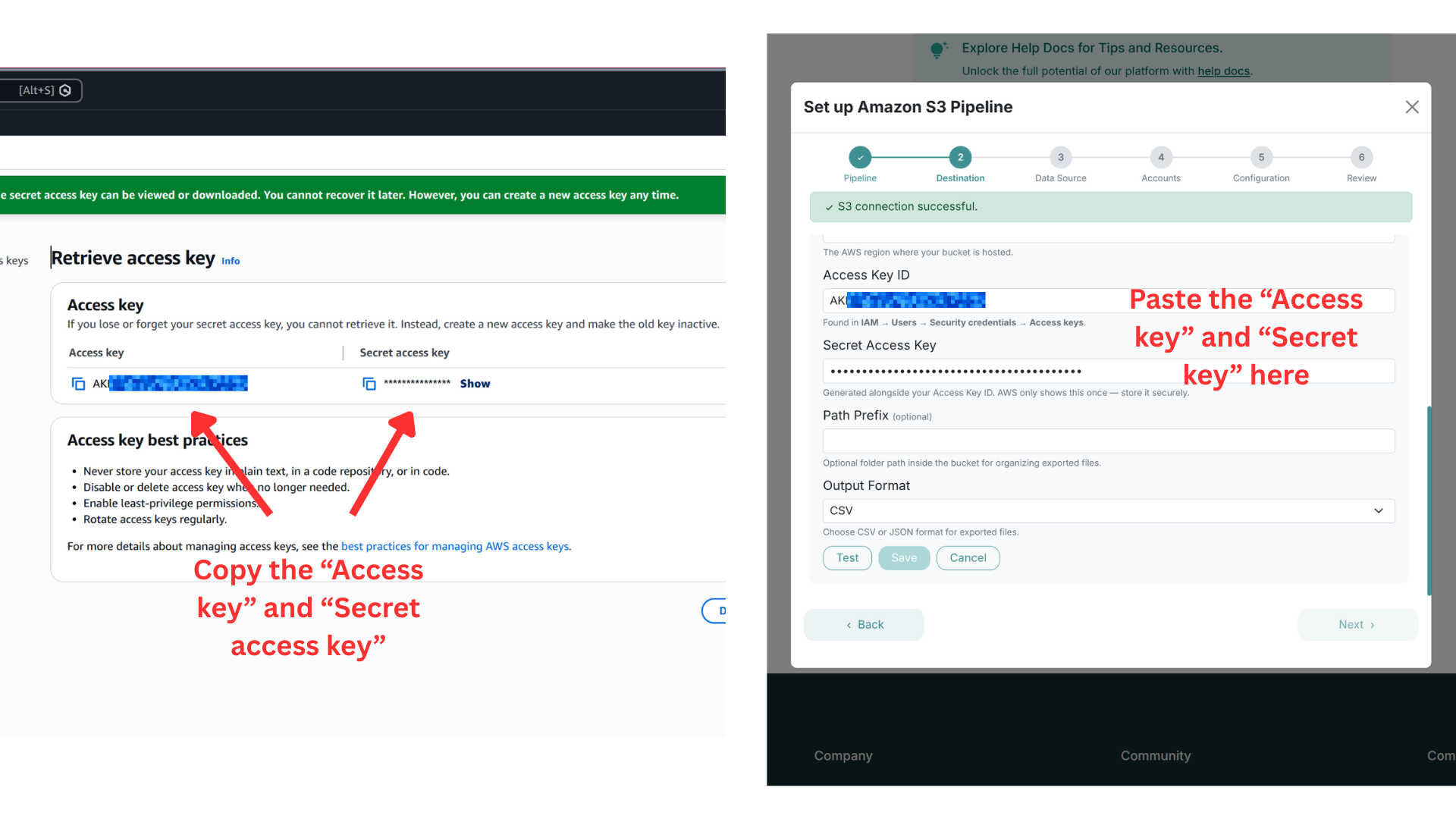
Copy your Access Key ID and Secret Access Key from AWS, then paste them into Adzviser. You can also optionally set a Path Prefix to organize exported files within your bucket, and choose your Output Format (CSV or JSON).
Click Test to check that Adzviser can list files in the bucket, then click Save. This test does not upload a file. After configuring your pipeline, use Run Once with a short date range that contains data and confirm the exported files appear in S3 before enabling a schedule.
Using AWS KMS encryption? Either permission option also needs access to the bucket's KMS key. Ask your AWS administrator to allow kms:GenerateDataKey on that key and confirm its key policy permits your IAM user to use it. AmazonS3FullAccess does not itself grant KMS permissions. See AWS's S3 encryption permissions guide. Bucket policies and organization restrictions still apply with either option.
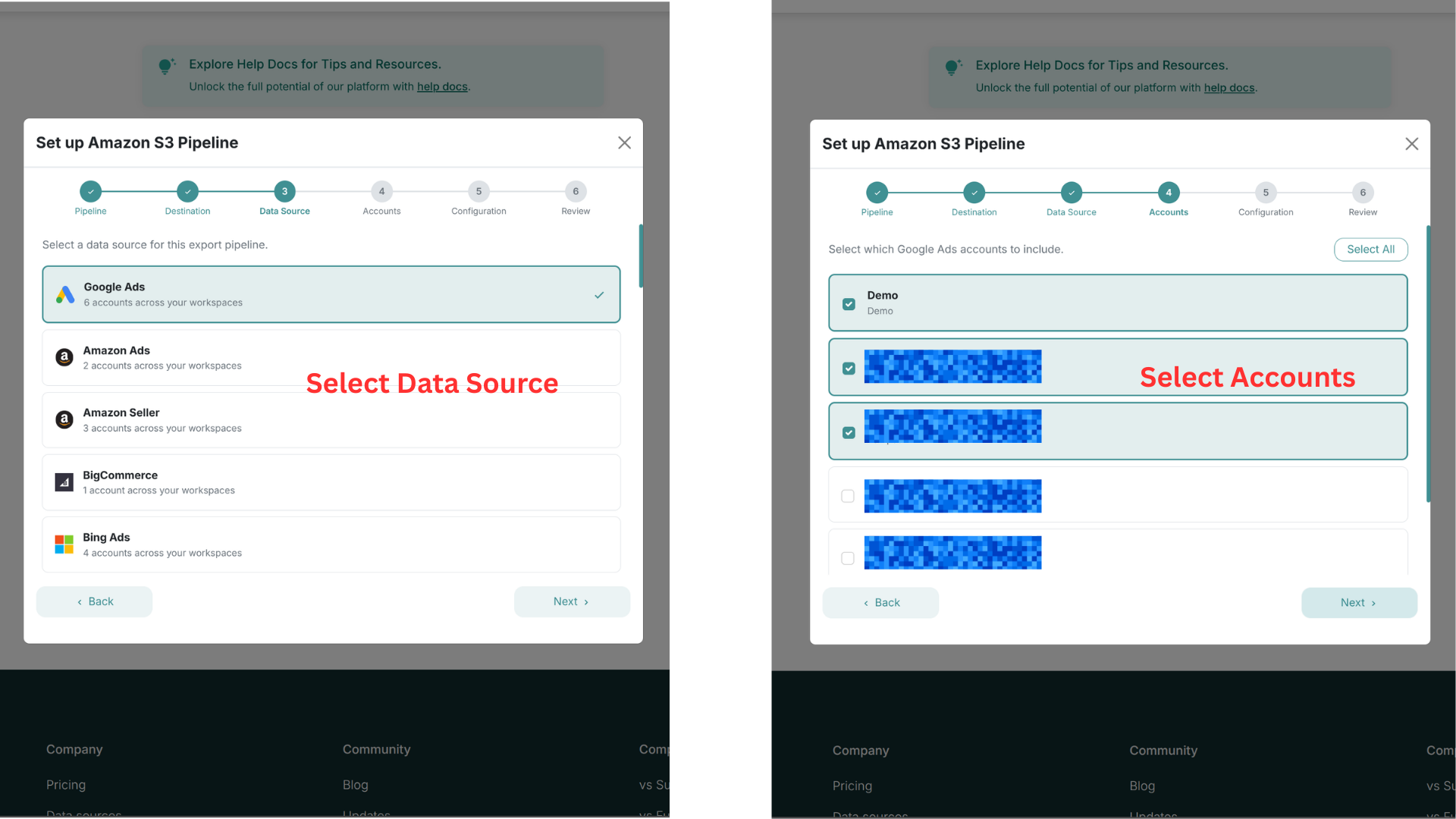
Step 4: Select Data Source and Accounts
Choose which data source you want to export (e.g., Google Ads, Meta Ads, Shopify) and then select the specific accounts to include in this pipeline.
Step 5: Configure Metrics and Export Mode
Select the metrics and breakdowns you want to export. Then choose your export mode:
Option A: Run Once (Backfill)
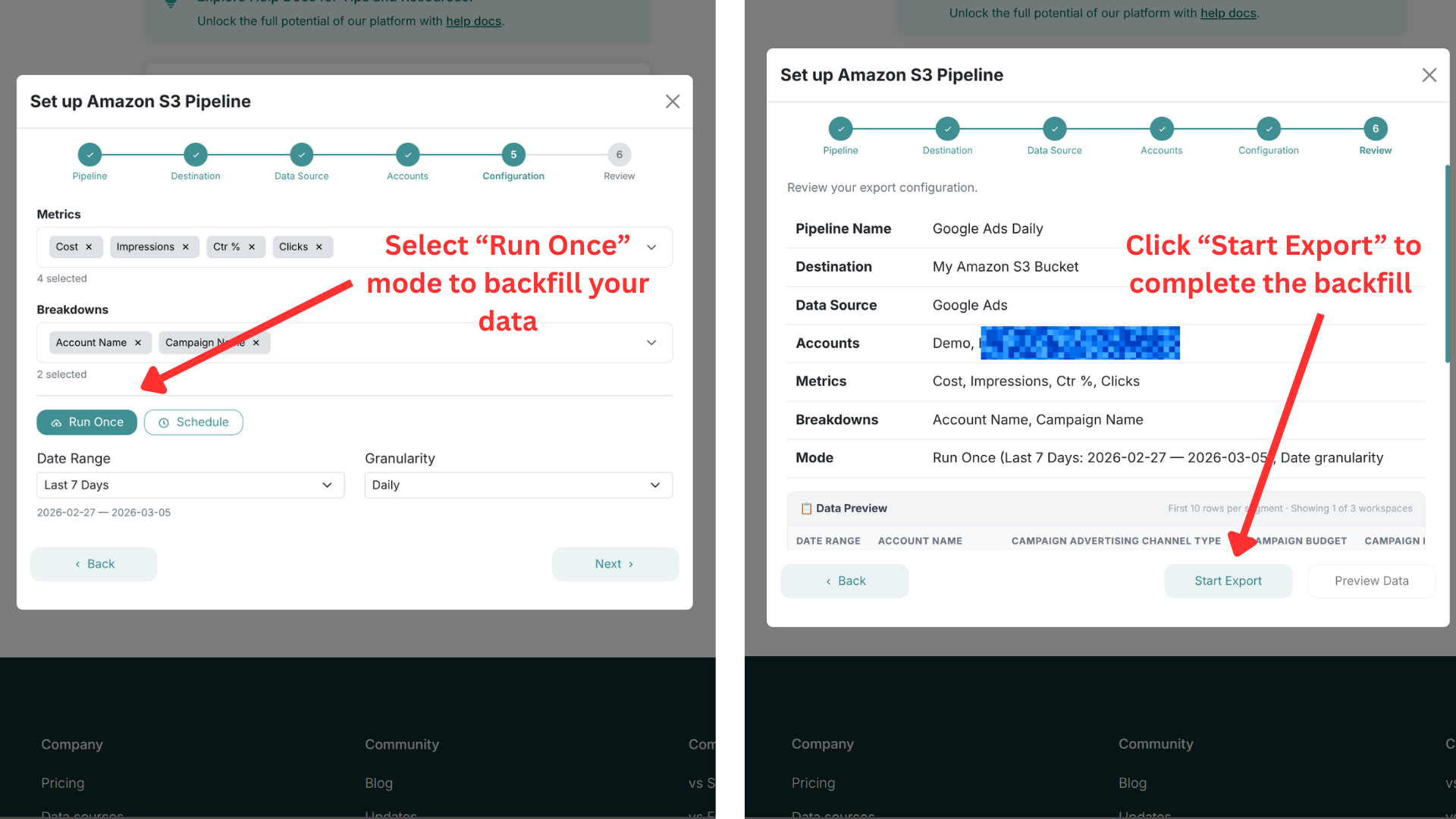
Select Run Once to perform a one-time data export. Choose your date range and granularity, then click Next to review your configuration. Click Start Export to begin the backfill.
Option B: Scheduled Export
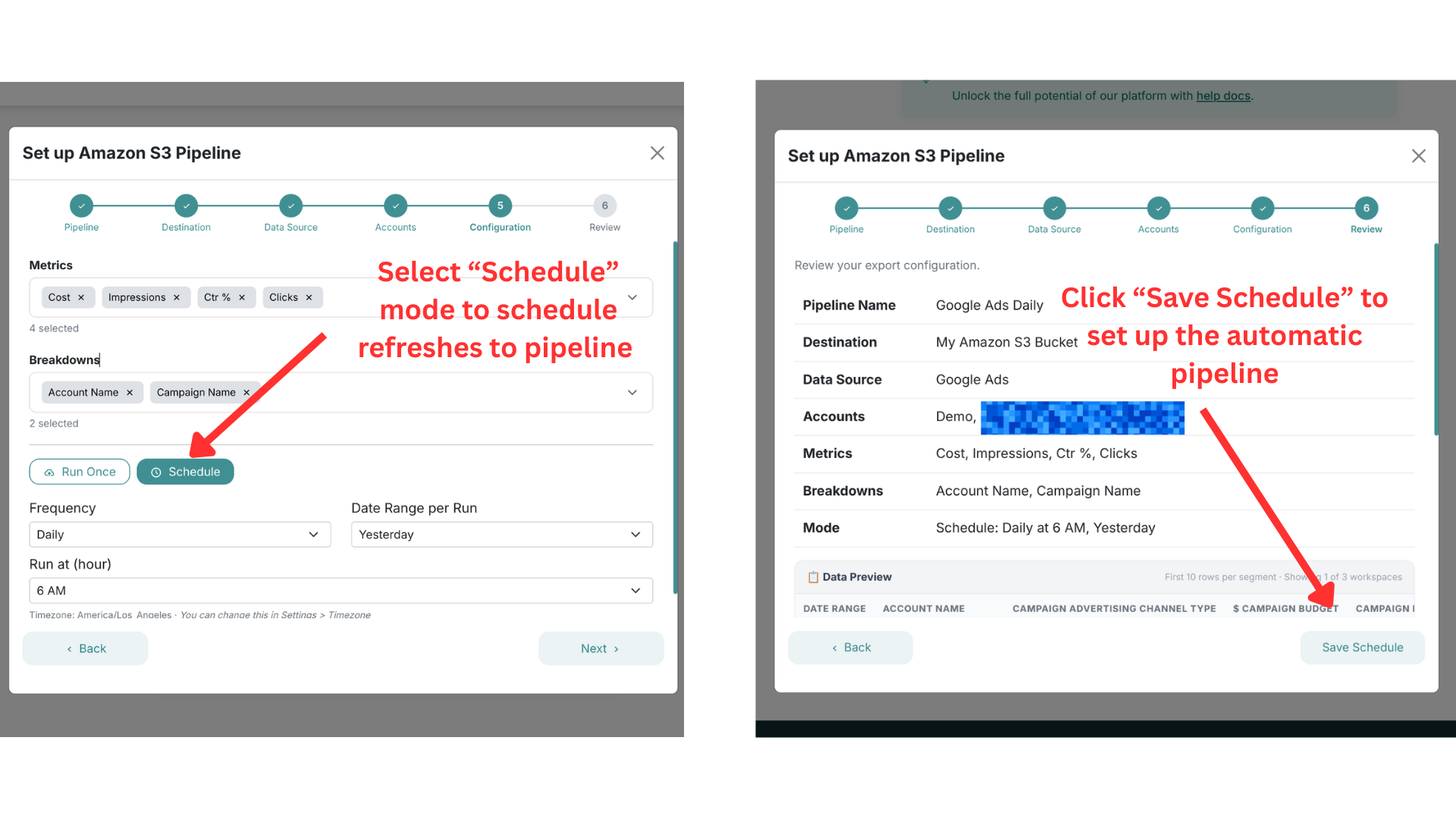
Select Schedule to set up automatic, recurring exports. Configure the frequency (e.g., Daily), date range per run (e.g., Yesterday), and the time of day to run. Click Next to review, then click Save Schedule to activate.
You can create multiple pipelines for different data sources or accounts. Each pipeline runs independently with its own schedule. Pipelines that write to the same S3 paths can replace each other's files; pipeline names do not separate their output. Use separate destination prefixes or buckets when needed. See file layout and replacement behavior.
Monthly row capacity
Both Run Once backfills and scheduled exports count toward your account's Monthly active rows (MAR) allowance, shared by Amazon S3 and BigQuery. Successfully exported data rows count; headers and unsuccessful writes do not. Exporting the same rows again counts again, even when they replace existing data.
To check MAR, open Set Up, open the account menu, and select Usage metrics. The MAR panel shows exported rows for the current UTC calendar month. It does not show the plan limit or capacity reserved by exports in progress. Review Subscription info or contact Adzviser to confirm your account's allowance.
An export can be rejected for capacity even when its connection settings are correct. If capacity is reserved by running exports, wait for them to finish before retrying. If the export needs more rows than remain, reduce its date range or detail, wait for the next monthly period, or contact Adzviser about more capacity. Splitting a backfill does not increase the monthly allowance.
Check Export History before retrying a failed run: partial writes may already have counted toward MAR. See Usage metrics and capacity recovery for the exact error messages and next steps.
Next Steps
Once your pipeline is running:
- Monitor exports — check the Export History tab for run results. It does not retain a separate copy of each run's files. To keep earlier file contents, configure S3 versioning and retention.
- Add more pipelines — create additional pipelines for other data sources or accounts
- Connect downstream tools — use your S3 data with Athena, Redshift, Snowflake, or any analytics platform
Need help? Contact us at https://adzviser.com/contact-us.