Set Up Power BI Scheduled Refresh
Adzviser supports a Query URL approach for scheduled refreshes in Power BI. This lets you generate a URL that Power BI can query on a schedule to automatically keep your reports up to date — no manual refresh needed.
The Query URL and Scheduled Refresh feature requires activation on your account. Contact us to unlock this feature.
Step 1: Generate Your Query URL
- Log in to Adzviser
- Go to the query builder and configure your query — select your data source, account, metrics, breakdowns, date range, etc.
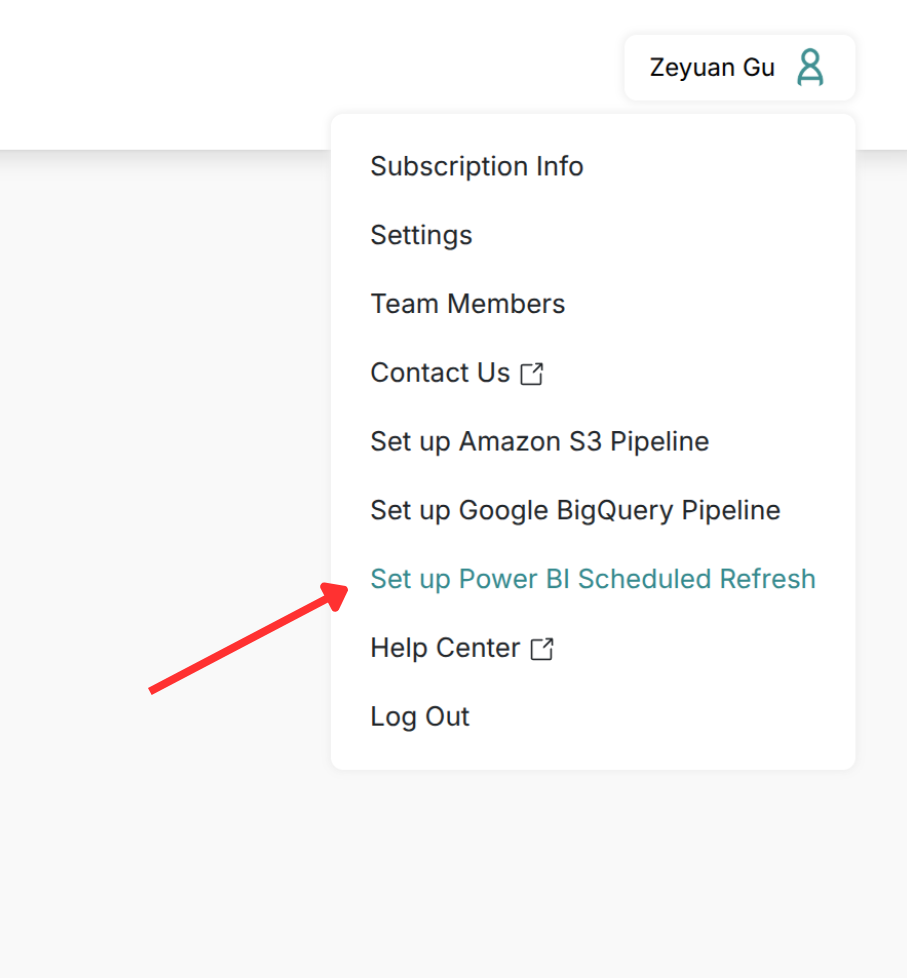
- Click "Set up Power BI Scheduled Refresh"
- Walk through the wizard:
- Name your query (e.g., "Google Ads Weekly Report")
- Select your data source (Google Ads, Facebook Ads, etc.)
- Pick your accounts
- Choose your metrics, breakdowns, date range, and granularity
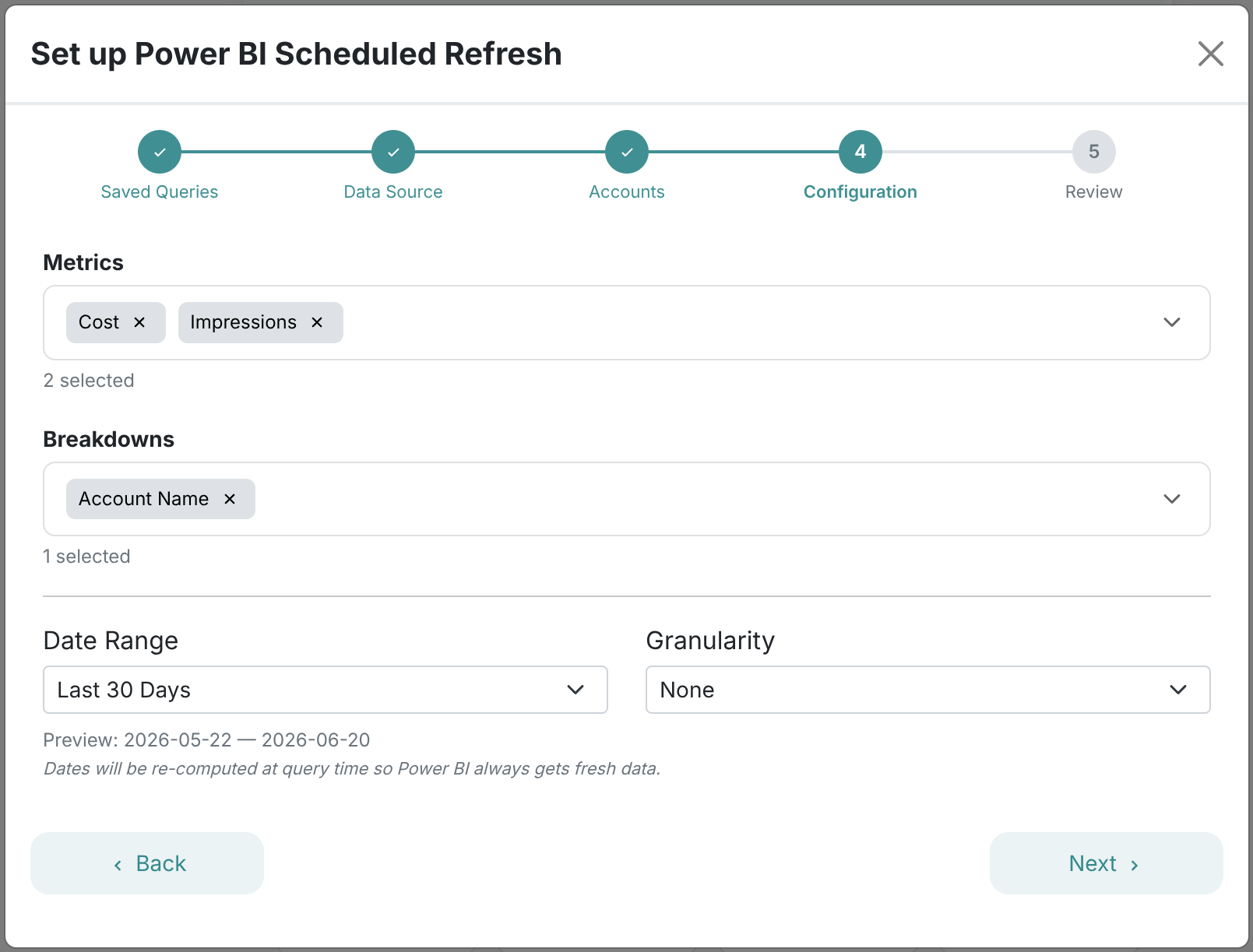
- You'll get a URL and an M code snippet — copy the M code.
Keep your Query URL private. Anyone with the complete URL can retrieve that saved query's results without signing in to Adzviser. This is why Power BI uses Anonymous authentication. Share the URL and M code containing it only with people authorized to access those results.
To invalidate the URL, open Set up Power BI Scheduled Refresh in Adzviser and delete the saved query using its trash icon. Reports using that URL will stop refreshing. If the URL was shared accidentally, delete the saved query, create a new one, and replace the URL in the affected Power BI reports' M code. Republish the updated reports to Power BI Service.
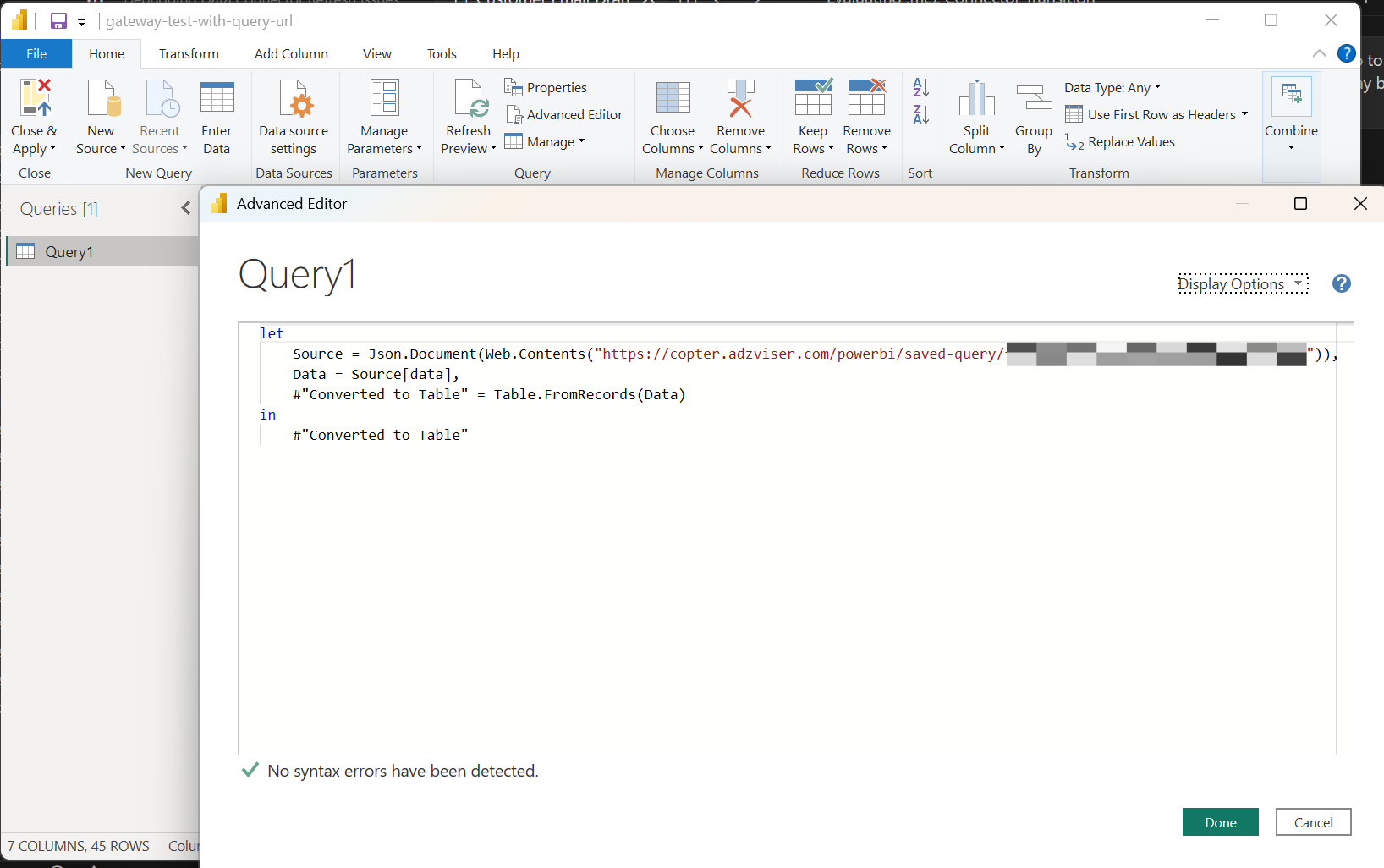
The M code will look something like this:
let
    Source = Json.Document(Web.Contents("https://copter.adzviser.com/powerbi/saved-query/your-unique-id")),
    Data = Source[data],
    #"Converted to Table" = Table.FromRecords(Data)
in
    #"Converted to Table"
Step 2: Create a New Report in Power BI Desktop
- Open Power BI Desktop
- Click Get Data → Blank Query
- In the Power Query Editor, click Advanced Editor (in the Home tab)
- Delete everything in the editor
- Paste the M code you copied from Adzviser
- Click Done
- If prompted for credentials, select Anonymous and click Connect
- If asked about privacy levels, set
copter.adzviser.comto Organizational - You should see your data load as a table — verify it looks correct
- Click Home → Close & Apply
- Save the file
Want multiple queries? Repeat steps 2–11 for each query. You can generate a different Query URL for each data source, account, or metric combination you need.
Step 3: Publish to Power BI Service
- In Power BI Desktop, click Home → Publish
- Select your workspace and click OK
- Wait for the "Success" message
Step 4: Configure Scheduled Refresh
- Go to app.powerbi.com
- Navigate to your workspace and find your dataset (semantic model)
- Click the ⚙ Settings icon (or ... → Settings)
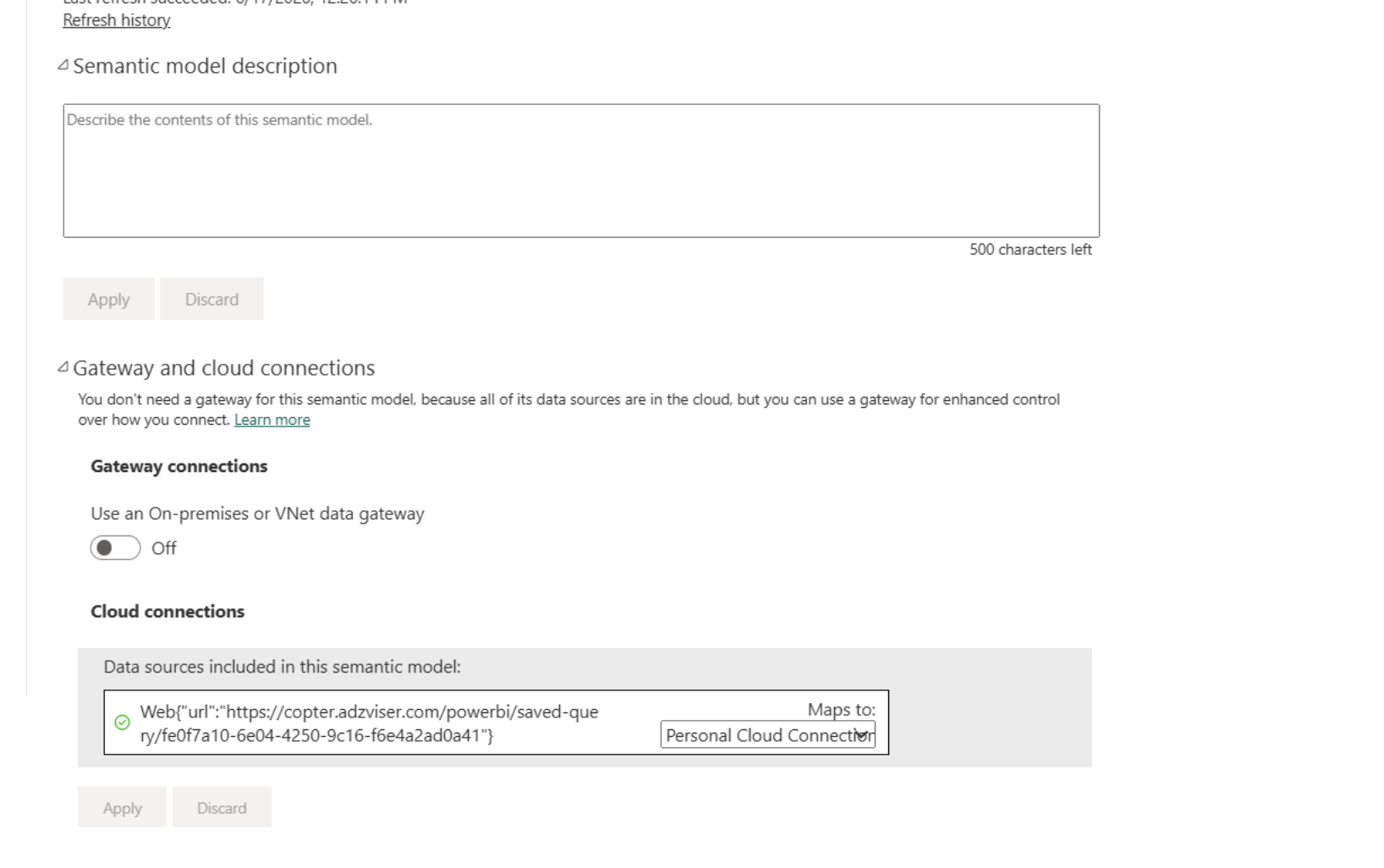
- Under Gateway and cloud connections:
- For a report using only the Adzviser HTTPS query URL, configure its cloud connection; this route does not require the downloaded
.mezconnector. - If the same report also uses on-premises or gateway-dependent sources, keep their required gateway configuration.
- Confirm that the Adzviser data source has valid credentials and a cloud connection. Connection labels can differ by account; see Microsoft’s refresh setup reference.
- For a report using only the Adzviser HTTPS query URL, configure its cloud connection; this route does not require the downloaded
- Scroll down to Scheduled refresh:
- Toggle it On
- Set your desired refresh frequency (e.g., Daily)
- Choose the time(s) you'd like it to refresh
- Click Apply
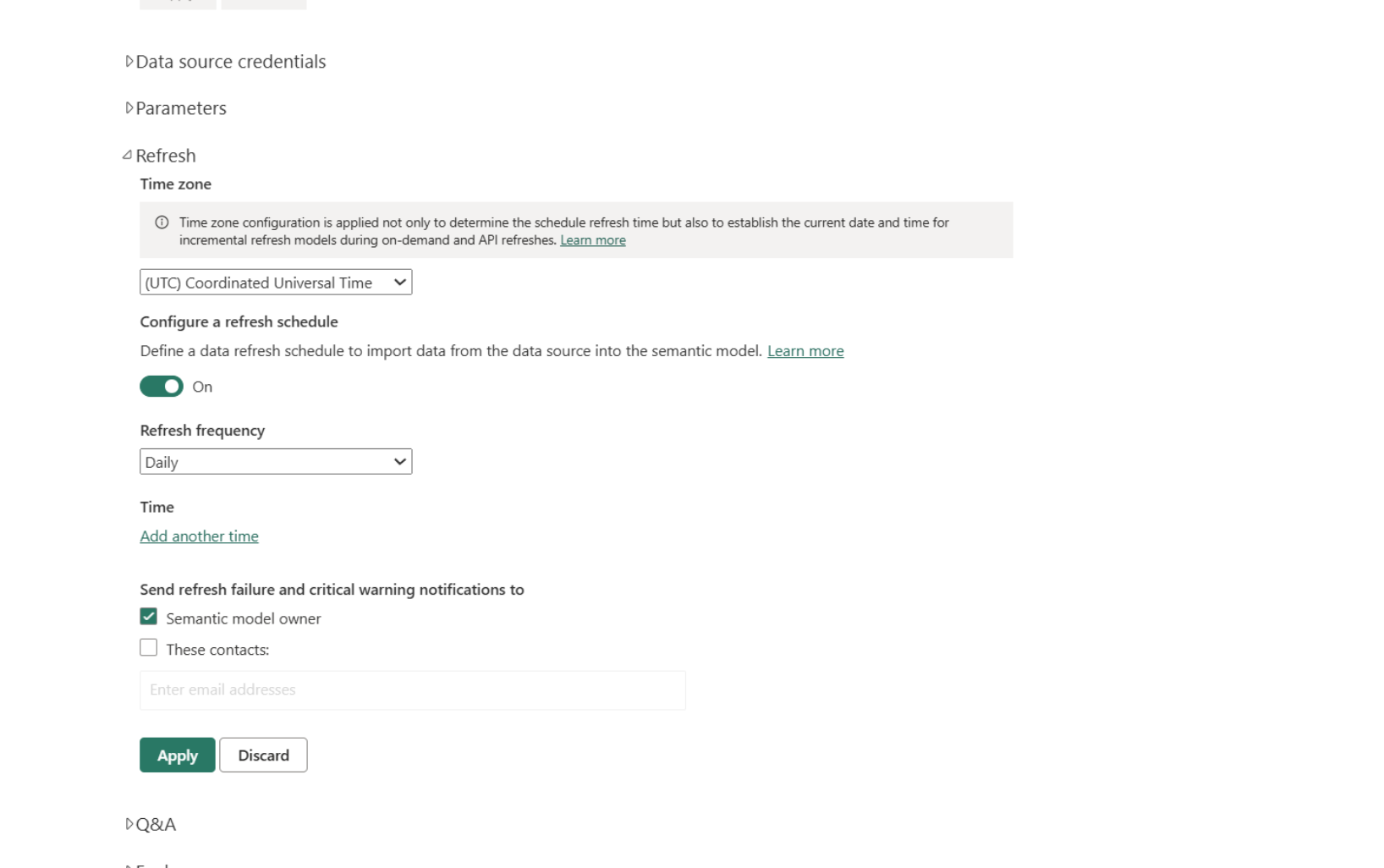
Once configured, Power BI will automatically refresh your data at the scheduled times. You can monitor refresh history and status from the dataset settings page on app.powerbi.com.