Team members and account switching
Invite colleagues to work in your Adzviser account using their own sign-ins. A shared account contains the owner's workspaces and connections; switching accounts changes which account you are working in, rather than copying its workspaces into your personal account.
Invite a team member
As the account owner, open Set Up, open the account menu at the top right, and select Team members. Enter your colleague's email, choose Viewer or Editor, and select Send Invite. The invite form requires an active subscription; if it is unavailable, check Subscription info.
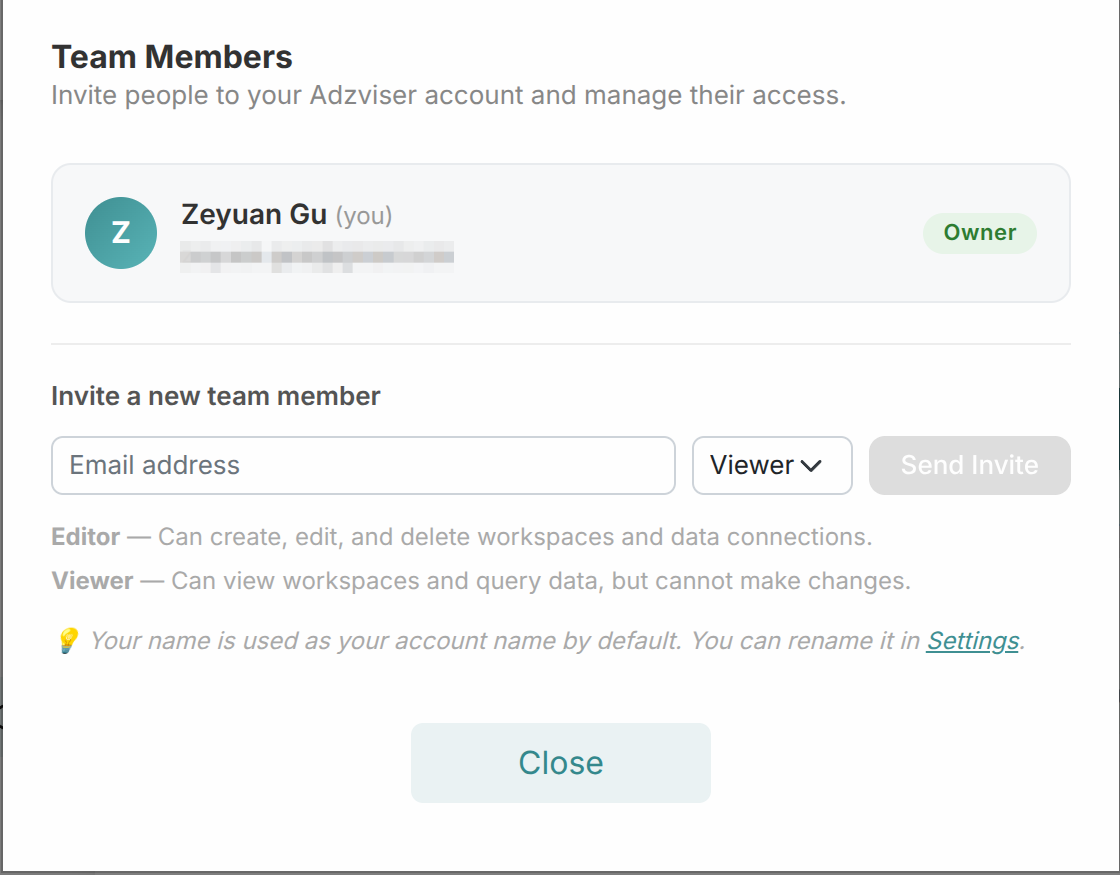
Choose the email your colleague uses to sign in to Adzviser. Invitations expire after seven days. The panel shows existing members and Pending Invitations, including each invitation's role and expiry date. Pending invitations count toward the team limit shown in the panel.
Choose the right access
| Role | When to use it |
|---|---|
| Owner | Manages the account's subscription and team invitations, roles, and removals. |
| Editor | Works with the shared account's data and can create, update, or delete its workspaces and manage their connections. |
| Viewer | Uses existing shared workspaces for reporting without creating, changing, or deleting workspaces or removing their connections. |
Membership is at the account level, not an invitation to just one workspace. Give Editor access to colleagues who need to maintain workspaces; use Viewer when they only need existing connections for reporting.
The owner can change a member's role or remove them in Team members. Use Revoke for an invitation that has not yet been accepted. Removing a member ends their access to the shared account; it does not delete their own Adzviser account.
Accept an invitation
Open the invitation email and follow its link. Sign in, or create an Adzviser account, using the same email address that received the invitation, then accept it. If the link says you are signed in with a different email, sign out and use the invited identity.
After acceptance, select the shared account to use its workspaces. If an invitation is already accepted, use the account selector instead of trying to accept it again.
Switch between accounts
From the account menu, choose Switch account, then select your own account or an account shared with you. This menu entry appears when you have shared accounts. You can also open the account selector.
Check the selected account before changing a workspace, reviewing a subscription, or checking Usage metrics. The account selection is also saved for external tools such as Google Sheets and MCP integrations. After switching, reload or reselect the workspace in your reporting tool if it still shows the previous account's workspaces.
Team members is available when you are in your own account. If you are working inside someone else's shared account, ask its owner to manage invitations and roles.
Resolve invitation and access problems
| What you see | What to check |
|---|---|
| Invitation email did not arrive | Check the address and spam folder. The owner should check Pending Invitations; if needed, revoke the pending invitation and send a new one. |
| Expired, revoked, or invalid link | Ask the owner for a new invitation. An expired link cannot be reused. |
| “An invitation has already been sent to this email.” | Use the existing invitation, or have the owner revoke it before sending another. |
| Team member limit reached | Review both accepted members and pending invitations. Remove access that is no longer needed or revoke unused invitations before inviting someone else. |
| Accepted invitation, but missing workspaces | Select the shared account and check that the owner has saved the workspace there. Confirm that the invitation was accepted under the intended sign-in. |
| View-only access message | Ask the owner for Editor access if your work requires workspace or connection changes. |
| Workspace is visible, but its source needs reconnection | Ask the owner or an Editor to renew the source's authorization using an identity with access to the correct source account. See the data source guides and fields. A team invitation does not grant permissions inside Google Ads, Meta, or another source platform. |
For plan or export-capacity issues, see Usage metrics and monthly active rows. If access still fails, contact Adzviser with the account name and the error message.