Connect Adzviser MCP to Muse
Connect Muse to Adzviser to ask questions about your marketing and sales data in a conversation. This guide shows how to request the connection, authorize your Adzviser account, and run your first report.
Video tutorial
Watch the Muse and Adzviser video tutorial on YouTube, or follow the steps below.
Before you begin
You will need:
- Access to Muse.
- An Adzviser account with a workspace and at least one connected data source.
The Google Ads example below requires a Google Ads account connected to your workspace. You can use another connected source for your first question.
Step 1: Ask Muse to connect to Adzviser
Open a conversation with Muse and send:
Can you connect to custom Adzviser MCP at https://mcp.adzviser.com/httpMuse can guide you through creating a custom connector from a chat request, as described in Meta's connector guide.
If Muse asks for connection details, use:
| Setting | Value |
|---|---|
| Name | Adzviser |
| MCP server URL | https://mcp.adzviser.com/http |
| Transport | Streamable HTTP |
| Authentication | OAuth |
Step 2: Select Connect
When Muse presents the Adzviser connector card, select Connect to begin authorization.
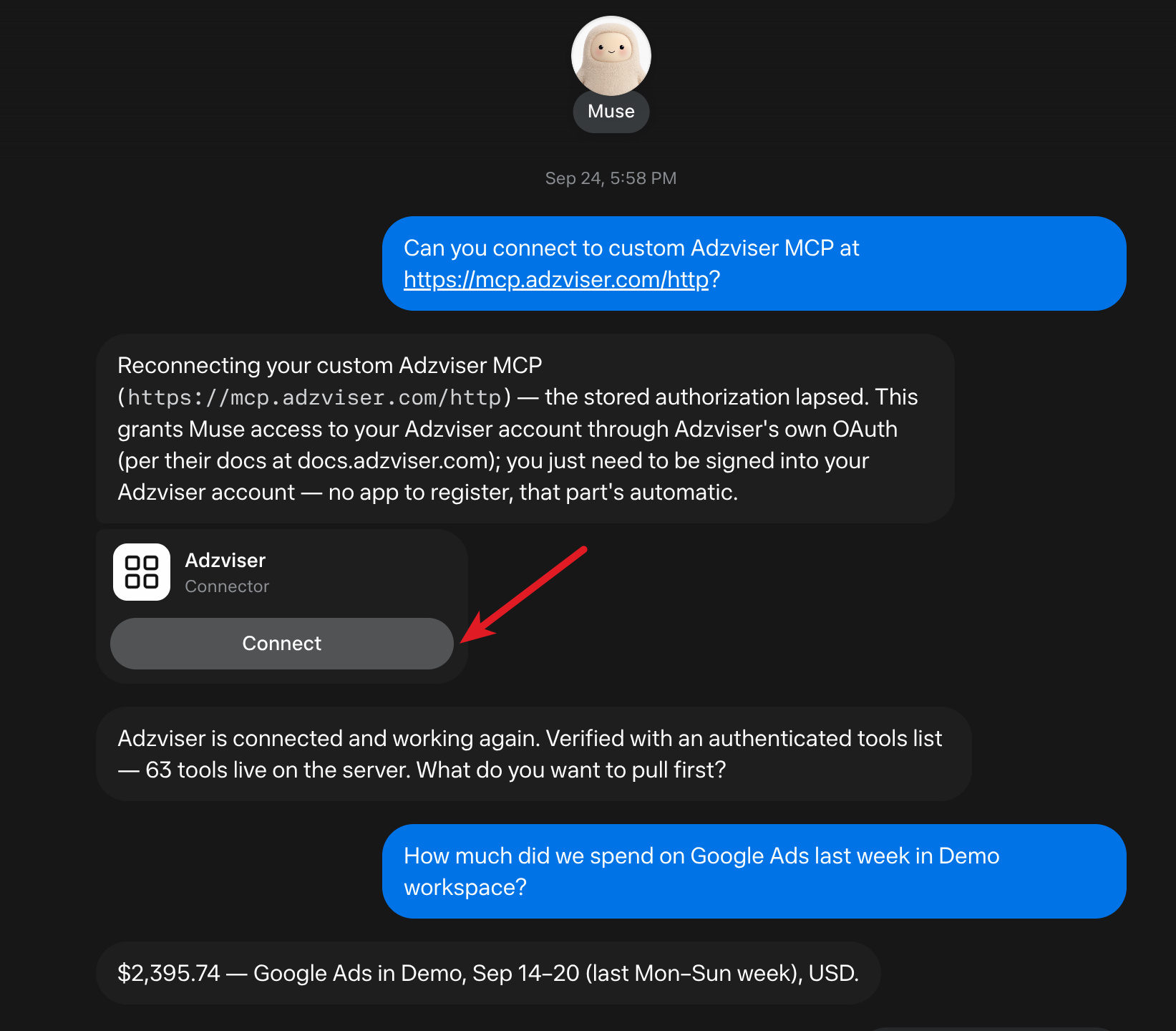
The screenshot shows an existing connection being renewed after its authorization expired. For a new connection, use the same Connect button; Muse's introductory message may differ.
Step 3: Authorize your Adzviser account
Follow the authorization link or window opened by Muse:
- Sign in to the Adzviser account that contains your workspace.
- Select Complete Authorization via MCP in Adzviser.
- Return to Muse and wait for it to confirm the connection.
This flow uses Adzviser's OAuth sign-in. You do not need to register an app or copy an API key into the conversation.
Step 4: Confirm access and choose a workspace
Ask Muse to check which workspaces and data sources it can access:
Use Adzviser to list my workspaces and their connected data sources.
Ask me which workspace to use before retrieving a report.
Choose the workspace that contains the account you want to analyze. If several accounts from the same platform are connected, specify the account as well.
Step 5: Ask your first question
The screenshot uses a Google Ads spend question:
How much did we spend on Google Ads last week in Demo workspace?
Include the exact date range and account currency.
Replace Demo with your workspace name. Check the dates and currency in Muse's answer before comparing it with another report. The amount shown in the screenshot belongs to that example workspace and period; your results will depend on your connected account.
Continue with a follow-up question:
Break that spend down by campaign and compare it with the previous week.
Show the absolute and percentage change for each campaign.
Or, if both platforms are connected:
Compare Google Ads and Meta Ads spend in this workspace for the same dates.
Show each account's currency and keep different currencies separate.
Find more examples in the Adzviser Prompt Library.
Troubleshooting
Muse does not show a Connect button
Ask Muse to create a custom connector for the exact server URL https://mcp.adzviser.com/http using OAuth. Follow any setup prompts it provides. See Meta's connector instructions for help with Muse's connector flow.
Muse says the authorization has expired
Ask Muse to reconnect to Adzviser, select Connect, and repeat the Adzviser authorization step. Then ask it to list your workspaces again to verify access.
My workspace or data source is missing
Check that you authorized the correct Adzviser account and that the source is connected in your workspace. If a source needs reauthorization in Adzviser, reconnect it there before retrying your question in Muse.
The report is empty or the numbers differ
Specify the workspace, account, exact date range, and account time zone. Confirm that the connected account has data for that period. Source reporting delays and attribution updates can also affect the results.
Need help? Contact Adzviser.