Connect the Adzviser plugin to ChatGPT
Connect Adzviser to ChatGPT to retrieve and analyze the marketing and sales data in your Adzviser workspaces.
Video tutorial
Watch the video tutorial on YouTube to learn how to use Adzviser with ChatGPT.
Before you start
Sign in to ChatGPT and have an Adzviser account with a workspace containing your data sources. Use the Adzviser account that has access to the workspace you want to analyze.
Step 1: Install the Adzviser plugin
Open Adzviser in ChatGPT's plugin directory. You can also open Plugins in ChatGPT and search for Adzviser.
Select Install plugin. If Adzviser is already installed, continue with the connection step.
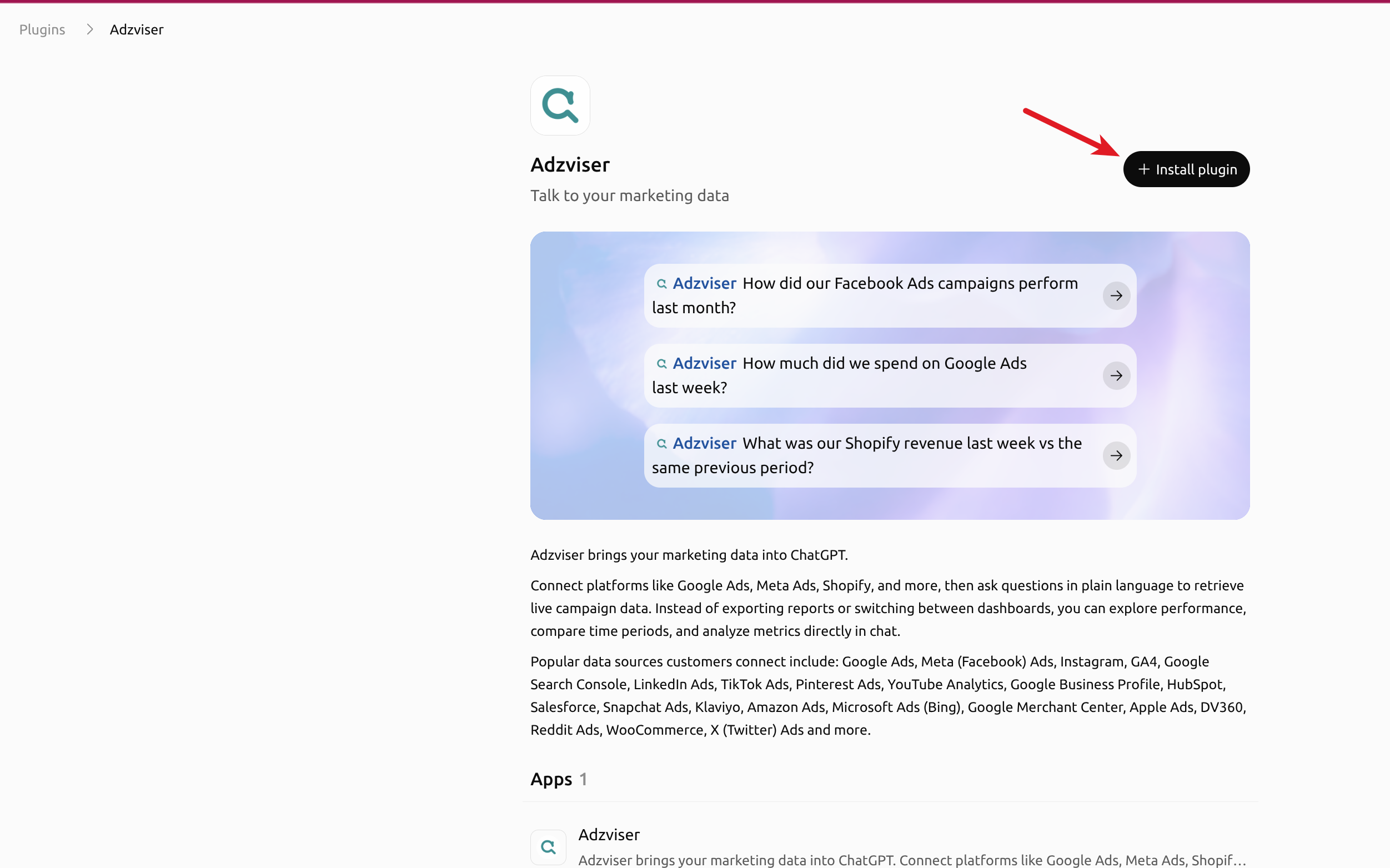
Select Install plugin on Adzviser's listing. View full-size installation screenshot.
Step 2: Connect your Adzviser account
When ChatGPT asks you to connect Adzviser, follow the sign-in prompt. This may appear during installation or when you first use the plugin.
- Sign in to Adzviser using the account that has your connected data sources. If asked to choose an Adzviser account, select the one containing the workspace you need.
- Review the data-sharing information on the authorization page. If you still need to connect a source, complete the workspace setup first.
- Select Complete authorization via MCP to finish the connection and return to ChatGPT.
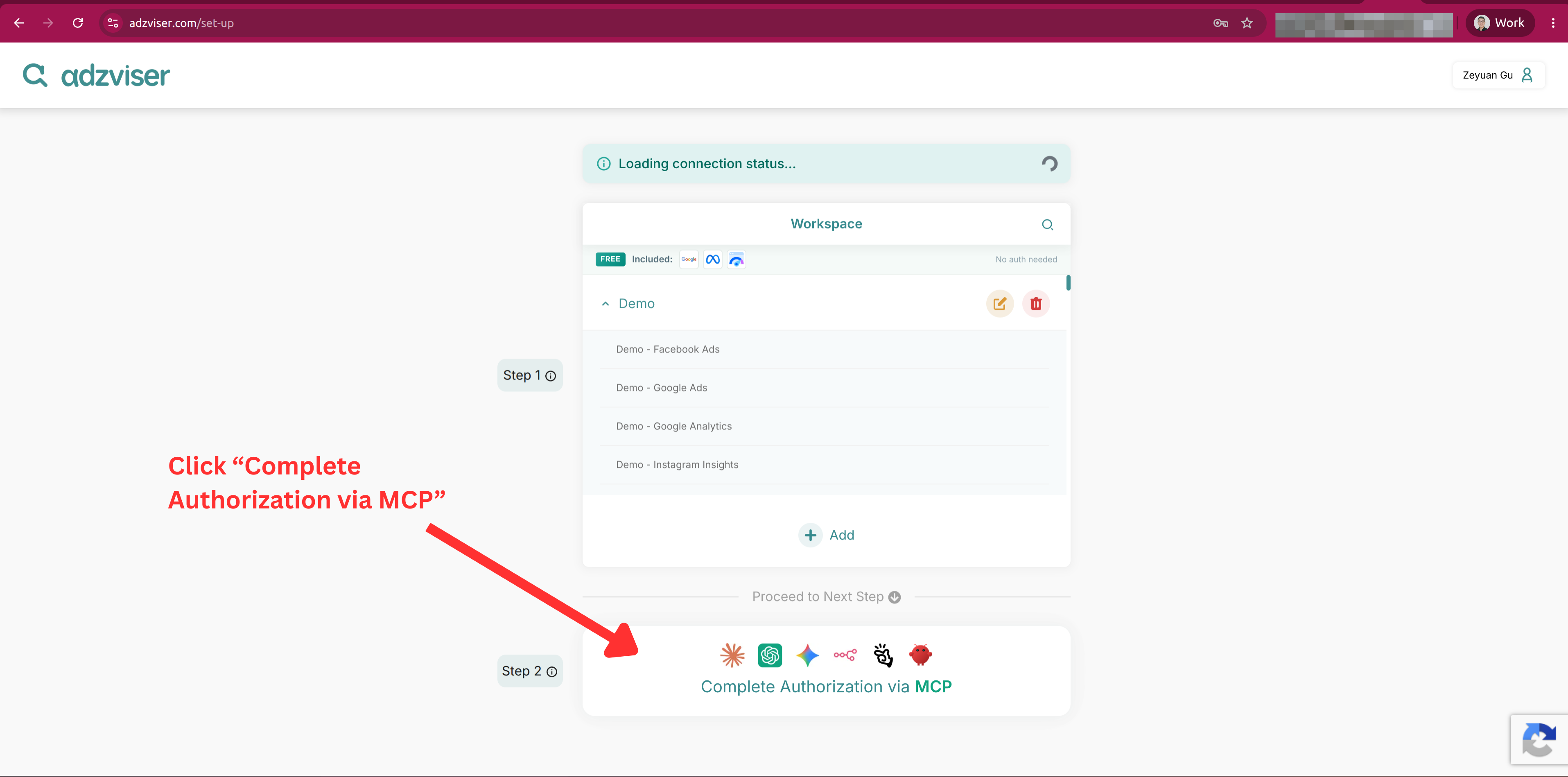
On Adzviser's authorization page, select Complete authorization via MCP below your workspaces to return to ChatGPT. View full-size authorization screenshot.
Step 3: Choose your workspace
Start a new ChatGPT conversation. Type @Adzviser and select the plugin from the suggestions, then ask:
List my Adzviser workspaces and the data sources connected to each one. Ask me which workspace to use before retrieving data.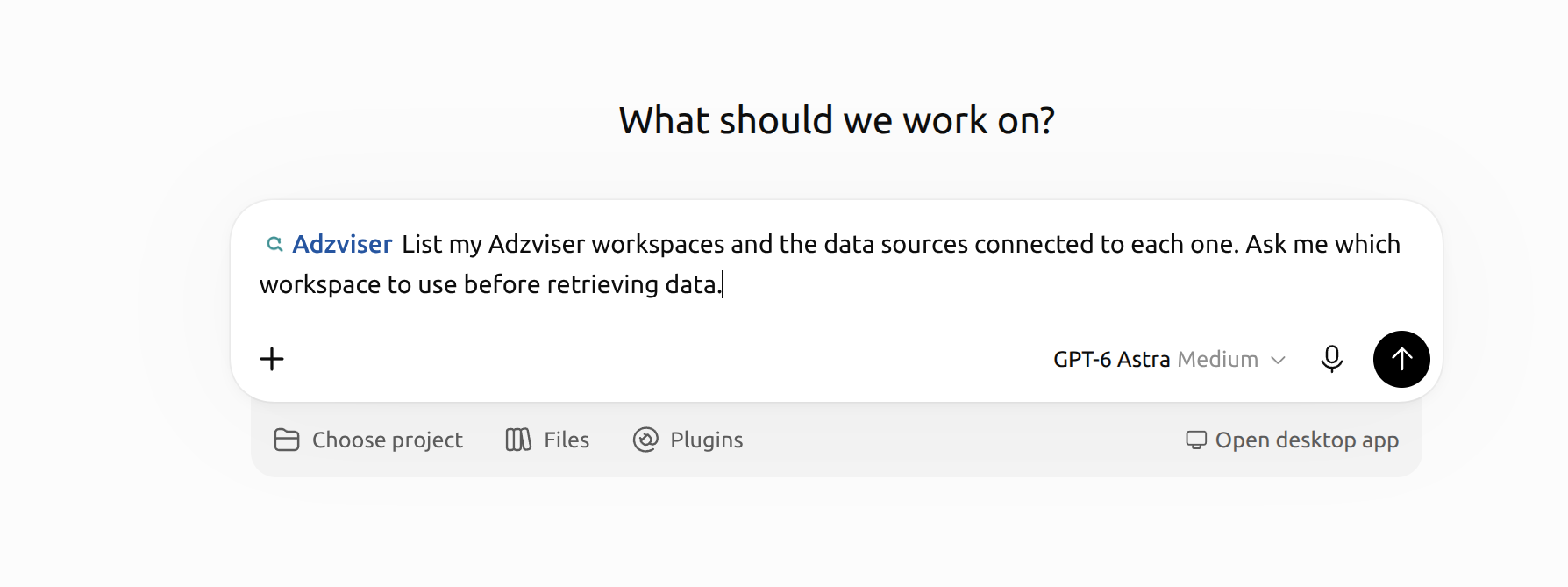
Check that Adzviser appears in the message box, then send the workspace prompt. View full-size prompt screenshot.
Check that ChatGPT returns the workspace and source accounts you expect. Tell it which workspace to use, especially if you manage several clients or brands.
Step 4: Ask your first reporting question
Include the workspace name, data source, dates, and metrics you want. For example, if you have Google Ads connected:
Use Adzviser to retrieve Google Ads spend, clicks, and conversions for the previous complete calendar month in the [workspace name] workspace. Confirm the exact dates, show the results by campaign, and summarize the largest changes compared with the month before.Replace [workspace name] with your workspace's name. You can ask follow-up questions in the same conversation or browse the prompt library for more examples.
If the connection does not work
Adzviser is missing from the conversation
Check that the plugin is installed in the ChatGPT account you are using, then start a new conversation and select it with @Adzviser. If your organization manages plugin access, check with its administrator.
ChatGPT asks you to sign in again
Follow the plugin's connection prompt and complete authorization in Adzviser. If you land on the Adzviser setup page without a completion button, return to ChatGPT and start the connection again from the plugin.
The expected workspace or source is missing
Open Adzviser and confirm that the source account is connected and the workspace is saved. Check that you authorized the Adzviser account with access to that workspace. Then ask ChatGPT to list your workspaces again.
If you still need help, contact Adzviser. OpenAI also provides an overview of installing and using plugins.